
Cases & PracticeAvailabilityFree
Find, Sort, and Tidy Up Your Cases
Search inside every case's analyses, sort and filter the case list, and move or delete several cases at once.
The search on the Cases screen looks inside each case's analyses as well as its title, so you can find a consultation by something you wrote in it.
Before you start
Search, sorting, folders, and bulk actions are available on Free and Pro. If Hide patient names in case lists is turned on, the list and the search box stay hidden until you select Show names; see Manage Privacy, Data, and Your Account.
Find a case
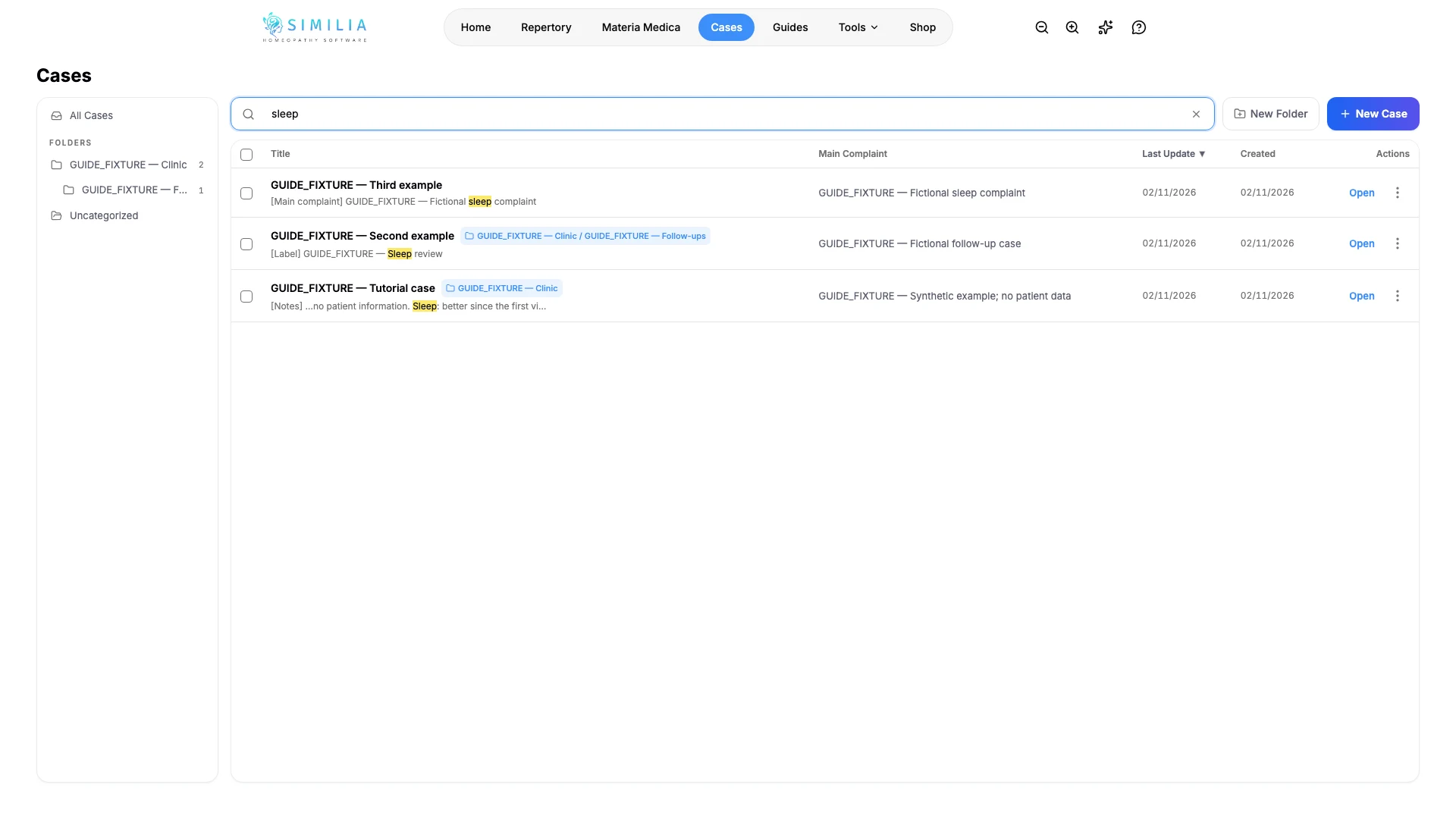
- In Cases, type a word in Search cases. It looks in titles, main complaints, folder names, analysis labels, notes, rubrics, and prescriptions, across every folder.
- Read the hint under each result, such as [Notes] or [Rubric], to see where the word was found, and the folder tag to see where the case is filed.
- Clear the search and select a folder in the sidebar to list only its cases, those in its subfolders included. All Cases lists everything again, and Uncategorized lists the cases that are in no folder.
- Select a column header such as Title or Last Update to sort by it, and select it again to reverse the order. The most recently updated case comes first by default.
Tidy up several cases at once
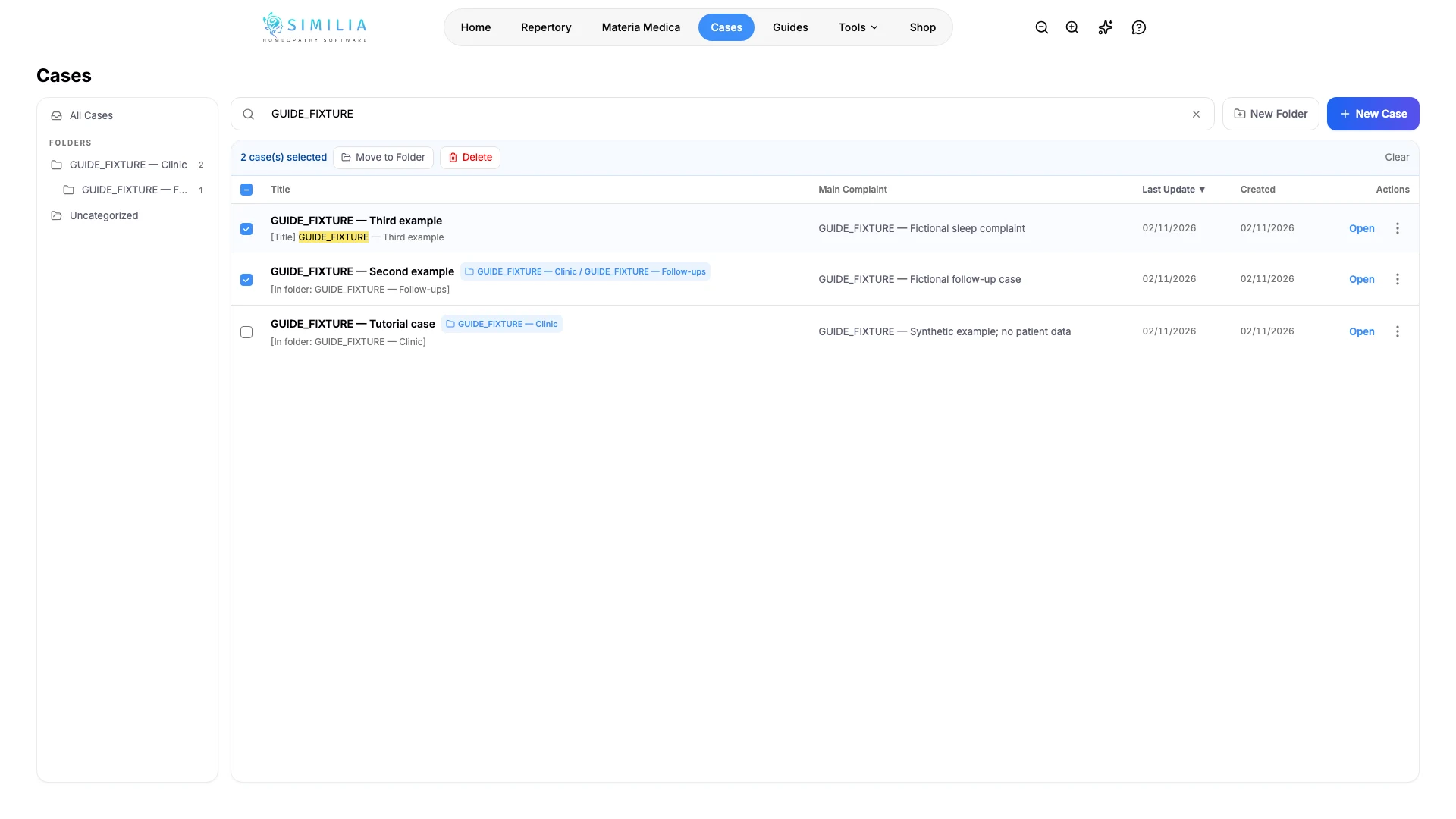
- Tick the checkbox of each case you want to tidy up.
- Select Move to Folder to file them all in one folder, or Delete and then Delete All to delete them.
- Select Clear to untick everything.
- To delete a single case, open its ⋮ menu, choose Delete, and confirm.
What you should see
Search results form one list across all folders, with the matching word highlighted. With cases ticked, the bar above the table shows how many are selected.
If something looks wrong
- If the list says "Searching across analyses…", wait a moment: Similia reads the analyses of every case before it can show matches inside them.
- If a case does not appear, check the spelling. Search does not look in patient details or in the timeline.
- If the folder sidebar is missing, widen the window. It appears on wider screens once a folder exists; on a phone, a chip above the list shows the selected folder, and selecting it clears the filter.
- If Move to Folder is missing from the bar, create a folder first, as described in Create, Edit, and Organize Cases.
- Cases named Quick case 1, Quick case 2, and so on come from quick repertorizations and are kept in the Quick cases folder.