
Settings & AccountAvailabilityPro
Import Data from Zomeo
Preview a Hompath Zomeo database safely, import it into the automatically created folder, and review the report.
The importer reads a Zomeo database, shows what it found, and creates Similia cases only after you confirm.
Before you start
Zomeo import requires Pro. Make a backup of both systems and locate the exported HompathCoreLibrary.sqlite file. Similia is calibrated for Zomeo schema version 15; other versions display a warning and need closer review.
Preview and import
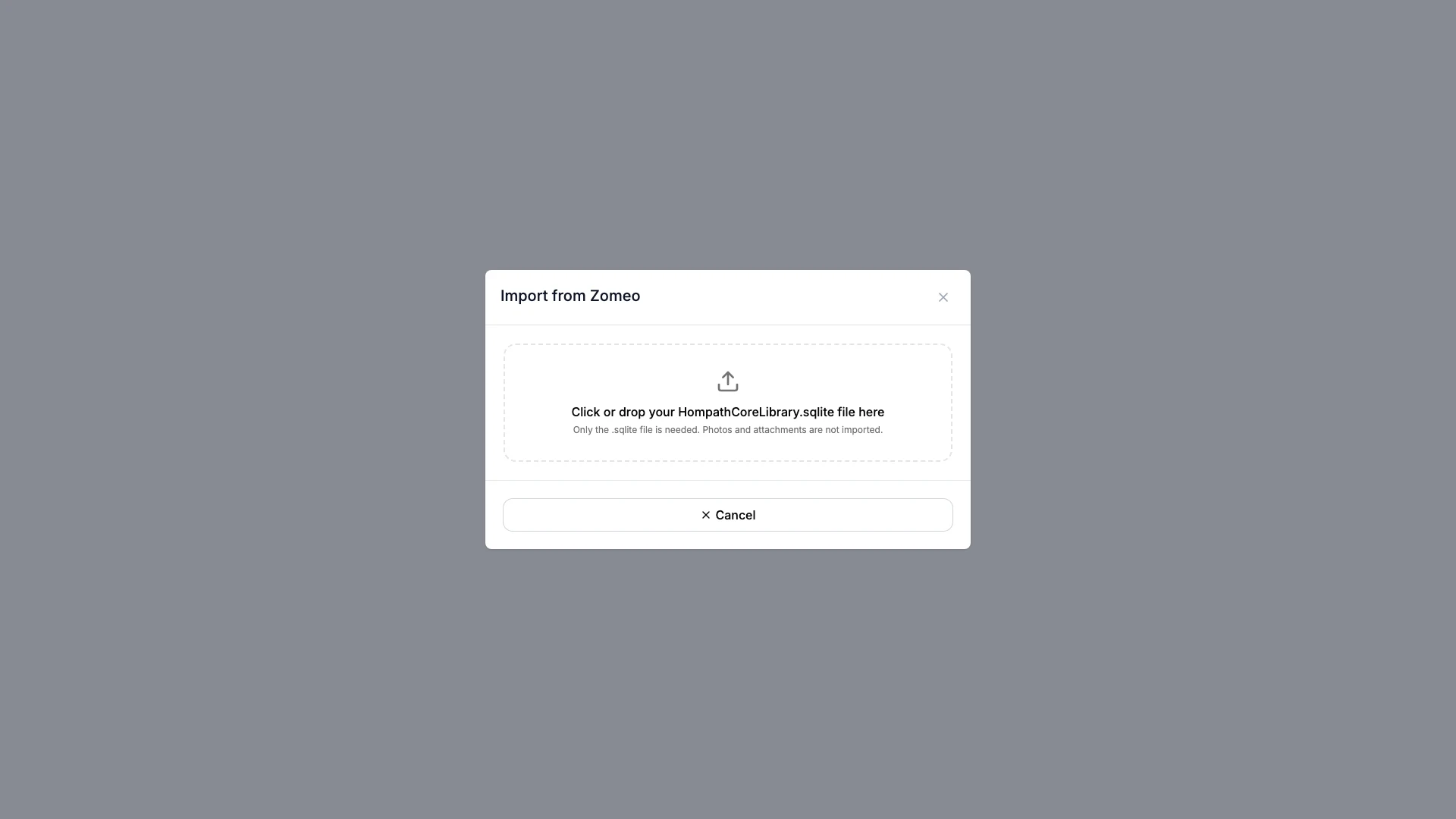
- Go to Zomeo under Settings > Import.
- Select the SQLite database file.
- Review the preview counts for patients, cases, follow-ups, prescriptions, and repertory symptoms.
- Stop if the counts are clearly wrong or a schema-version warning is unexpected.
- Check the automatically named Zomeo Import — date target folder shown by Similia.
- Confirm the import.
- Keep the page open until the import completes.
- Review the imported, skipped, rubric-match, and error totals.
What you should see
No cases are created during preview. After confirmation, the completion report and automatically created Zomeo Import — date folder make the imported records easy to audit.
If something looks wrong
- If the file is rejected, confirm it is the Zomeo SQLite database rather than a shortcut or compressed archive.
- If a version warning appears, compare the preview carefully and import only if the mapping is acceptable.
- If the run reports errors, preserve the source file and report; do not repeatedly import into the same folder.