
Customize Repertory and Analysis Display
Adjust repertory text, remedy order, author tags, grade colors, and analysis-grid display from Settings, and choose AI-assisted or Manual work mode.
Display settings change how repertory and analysis information looks; they do not change the underlying rubrics, grades, or scores.
Before you start
These display controls are available on Free and Pro. Open Settings, then the Repertory & analysis group.
Adjust the display
- Open Repertory display.
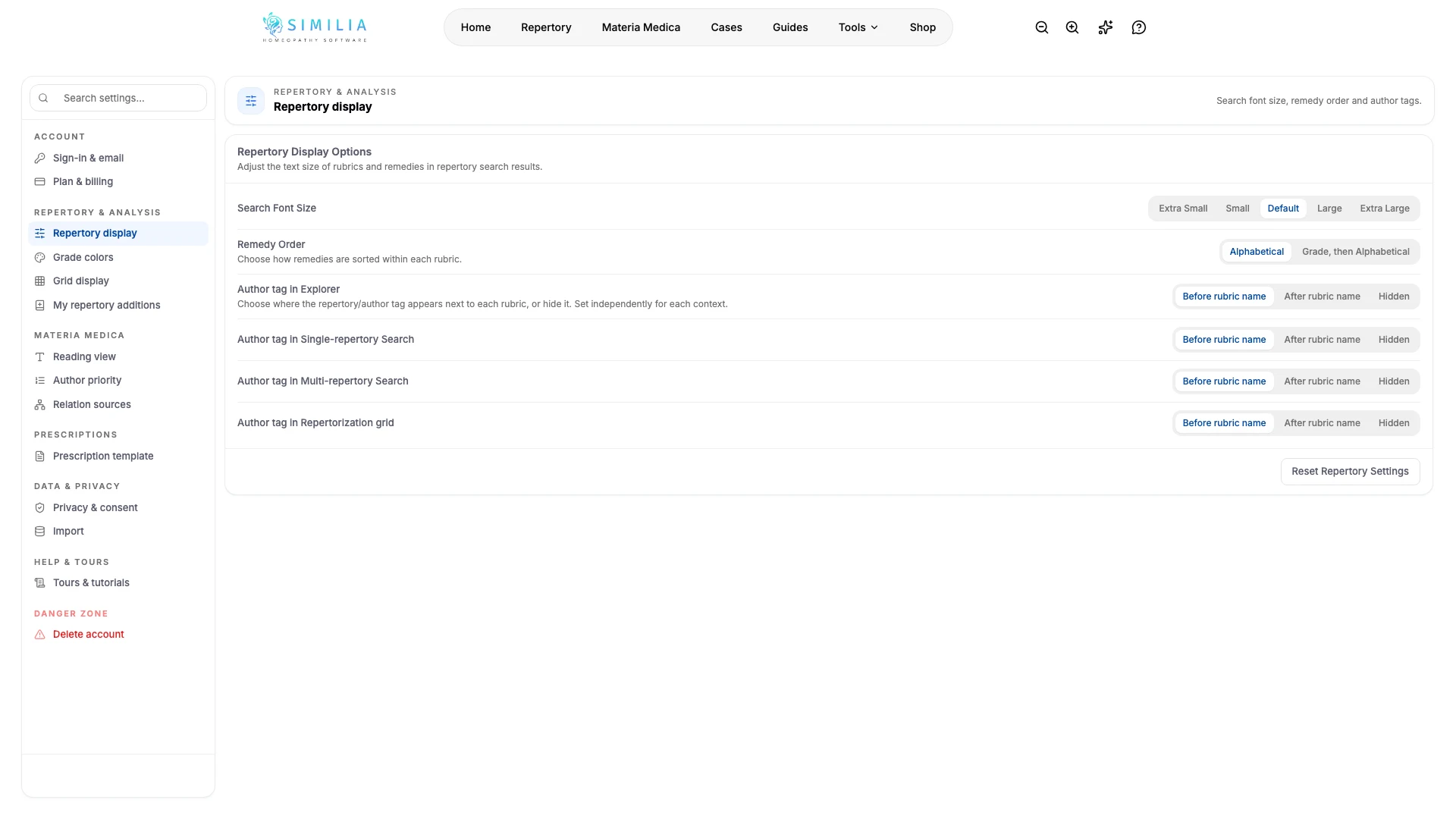
- Choose a comfortable search font size.
- Choose alphabetical or grade-then-alphabetical remedy order.
- Set where author tags appear in search, explorer, and grid contexts.
- Open Grade colors.
- Choose colors you can distinguish reliably.
- Open Grid display.
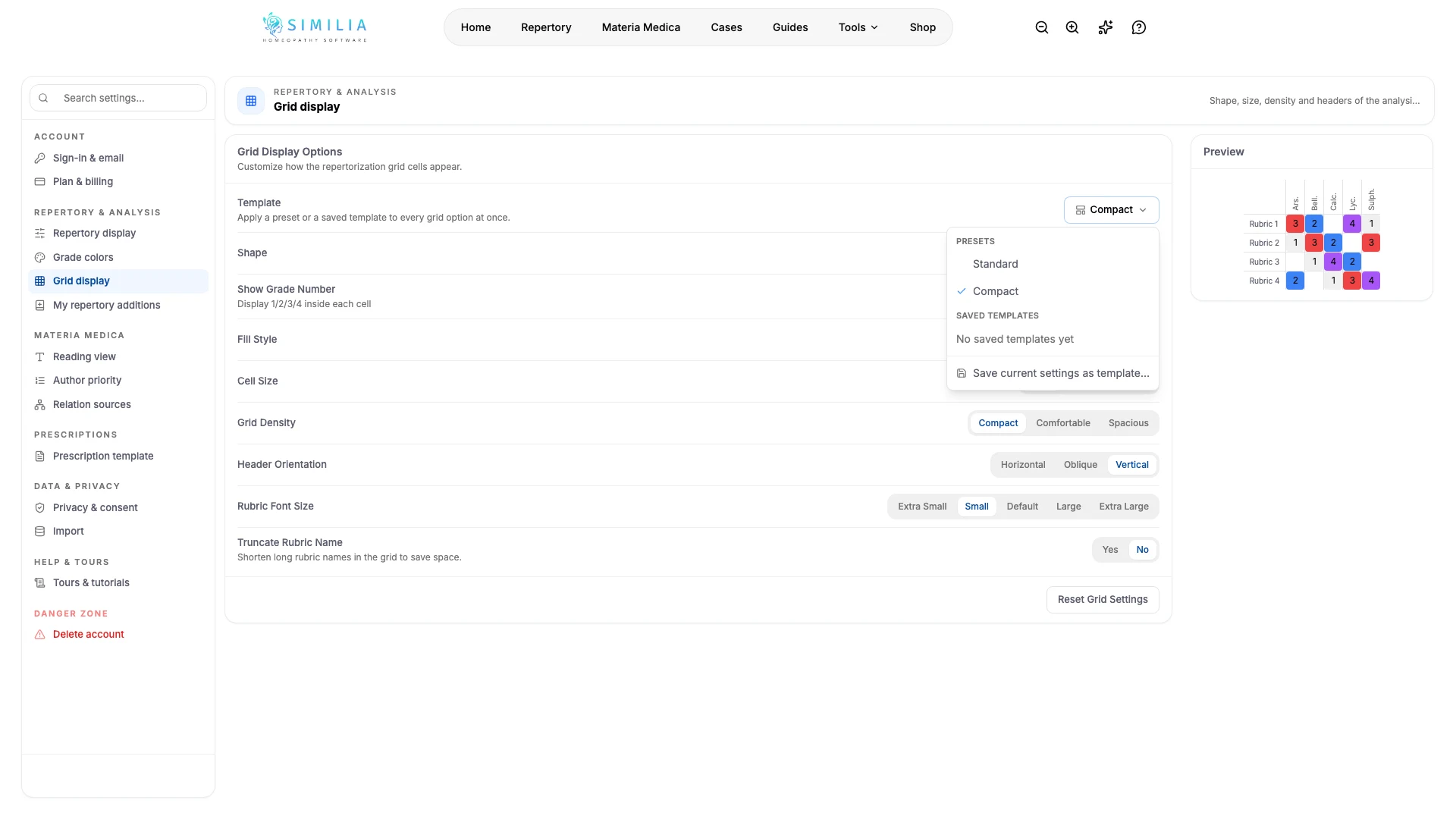
- Pick a template at the top of the card, or set the cell shape, size, density, grade numbers, and header orientation yourself. Standard restores the defaults, Compact packs more remedies on screen, and Save current settings as template… keeps a favourite combination under a name for one-click reuse.
Work without AI suggestions
Open Work mode in the same group and choose Manual to hide the AI tools that find rubrics and remedies for you. Repertory search then runs by keyword, so translating the patient's words into repertory language stays with you; the card lists exactly what is hidden. Your plan, credits, cases and saved analyses do not change, and AI-assisted, the default, brings everything back.
What you should see
Previews update immediately, and the repertory or analysis grid uses the saved choices the next time it appears. The template picker shows Standard, Compact, or the saved template that matches the current options, and reads Custom otherwise.
If something looks wrong
- If text is clipped, reduce its size or disable rubric-name truncation.
- If grades are hard to distinguish, restore the default colors and enable grade numbers.
- If a setting does not appear immediately, close and reopen the analysis after saving completes.