
Create and Export a Prescription
Record a prescription on an analysis and export a clean copy without leaving the screen.
Record the decision you made outside the repertorization result, then export it when you need a portable copy.
Before you start
Open the correct case and analysis. Prescription recording and the export workflow are available on Free and Pro.
Record and export
- Open the prescription panel from the analysis toolbar.
- Select the remedy carefully from the available list.
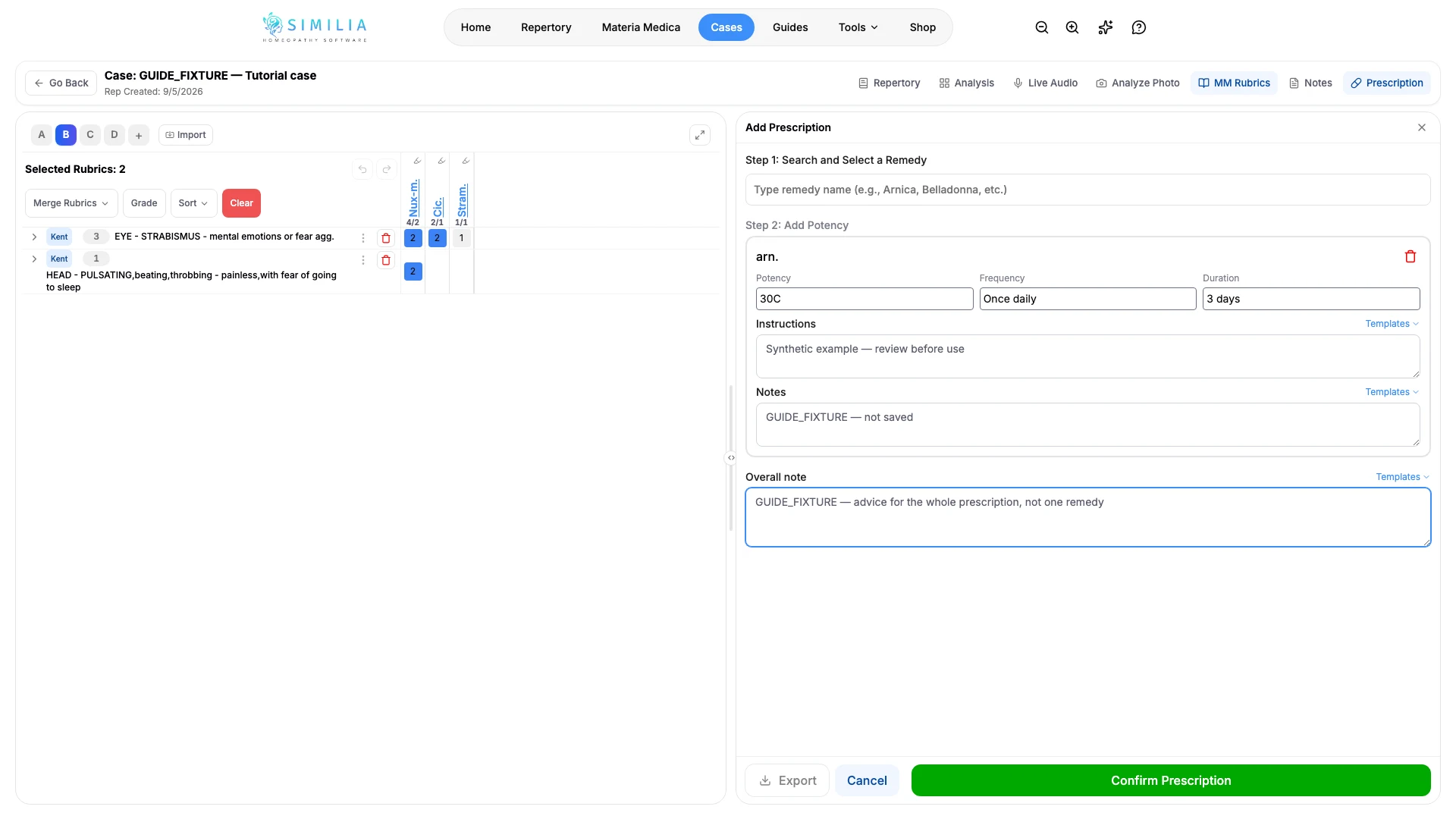
- Complete the potency, frequency, duration, instructions, and notes fields for each remedy, then add the overall note if there is advice covering the whole prescription.
- Review every field, especially the remedy and potency values.
- Save the prescription.
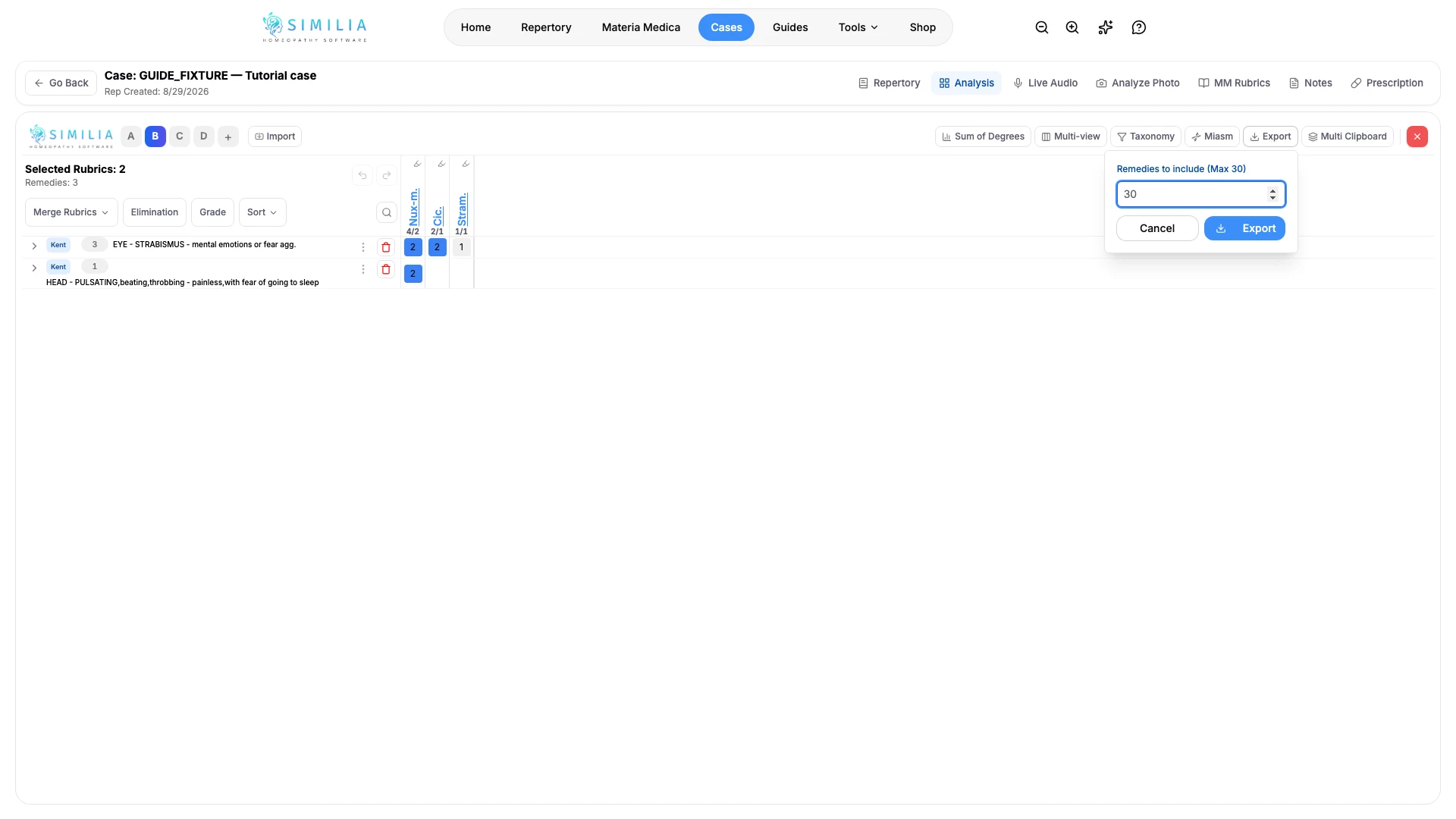
- Reopen the prescription panel and choose Export.
- Inspect the downloaded file before sharing it.
Write one note for the whole prescription
The notes field inside each remedy card belongs to that remedy alone. Advice covering everything you prescribed — how to take the remedies, what to expect, when to come back — belongs in Overall note, below the remedy list. It is stored on the analysis rather than on any one remedy, so editing, reordering or removing a remedy leaves it untouched, and it prints once at the end of that analysis in the exported document.
Advice you give most clients can be saved and reused. Type it once, choose Templates above the field and Save as template, then give it a name such as Taking remedies. From then on the same menu inserts it into the overall note with one click, and you can edit the wording afterwards for the client in front of you. Overall-note templates are kept separate from the per-remedy instruction and note templates, so each menu offers only what belongs in that field. Manage templates renames or deletes them.
Put the remedies in the order you intend them
Saved prescriptions stay in the order you added them, which is rarely the order you want once a plan takes shape. Under Previous Prescriptions, drag a row by the handle on its leading edge to move it, or use the up and down arrows next to Edit if you prefer the keyboard. The new order saves on its own and follows the prescription everywhere it appears, including the case screen and the exported document.
Moving a row changes only its position. The date and time on each row still record when you wrote that entry, so they do not shift when you reorder.
The case screen still lists every prescription in the case together, with the same export for a single analysis or for all of them at once.
What you should see
The prescription remains attached to the case, and the export contains the details you confirmed. The document follows the letterhead, fields, and file format set under Settings.
If something looks wrong
- If the save action is unavailable, complete the required prescription fields.
- If Export is greyed out, save or clear the prescription you are still editing.
- If the export opens a blank tab, allow downloads or pop-ups for Similia and try once more.
- If details are incorrect, edit the saved prescription before creating another export.
- If the rows will not move, close the prescription you have open for editing first — reordering is unavailable while an entry is being edited.