
AI ToolsAvailabilityPro
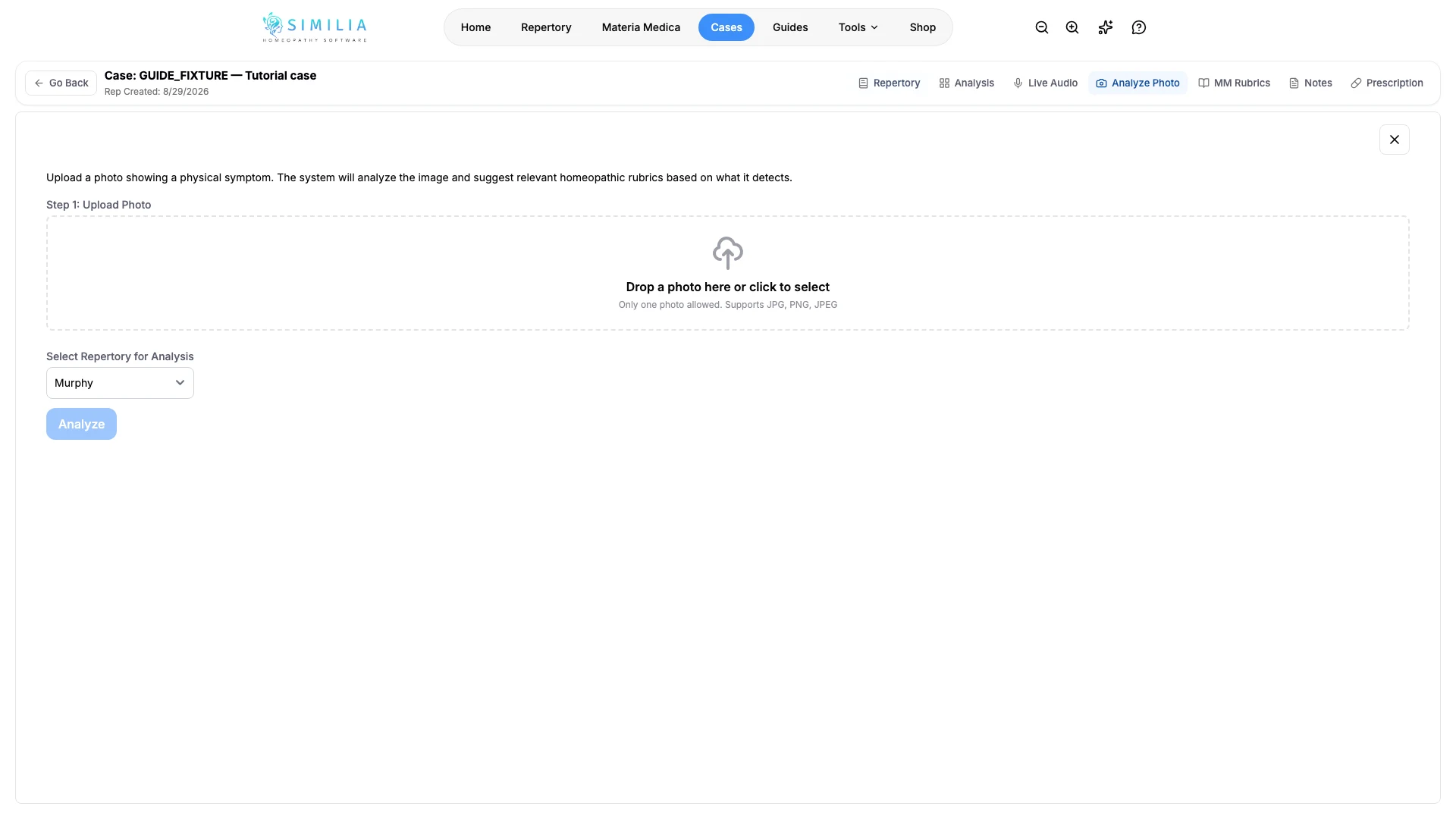
Analyze a Symptom Photo
Upload a consented symptom image, review the AI observations, and verify any proposed rubrics manually.
Photo Analysis describes visible features and may suggest related rubrics for you to evaluate.
Before you start
This tool requires Pro, AI consent, and available credits. Obtain permission for the image, remove identifying details, and never upload an image you are not authorized to process.
Analyze the image
- Go to Photo Analysis in the intended case analysis.
- Select a clear, well-lit image that shows only the relevant area.
- Check the preview for faces, labels, or other identifying information.
- Read the consent and credit information.
- Start the analysis.
- Compare each visual observation with the original image.
- Inspect each proposed rubric against the image.
- Add only rubrics whose wording is actually supported.
What you should see
The uploaded image, AI observations, and possible rubric matches remain visually separate for review.
If something looks wrong
- If upload fails, use a supported image file and a stable connection.
- If the image is unclear, do not infer missing detail; take an authorized clearer image or continue manually.
- If processing is blocked, check Pro, consent, credits, and file size before retrying once.