
Keep working when the connection drops
The installed Similia app keeps recent cases, notes, repertories and materia medica books on the device. Changes are saved there and sync as soon as the connection returns.
Part of a Pro subscription, in the installed app. Not included in the free trial.
How it works
Set it up once on each device.
Install the app
Add Similia to the home screen, the Dock or the desktop straight from the browser. No app store is needed.
Turn on offline mode
In the installed app, open Settings › Offline and choose Turn on. Keep the app open while it downloads the recent cases and every repertory and book on the account.
Work anywhere
When the connection drops, Similia keeps opening from the device. Changes wait there and sync by themselves once the device is back online.
Repertories and books added to the account later download by themselves.
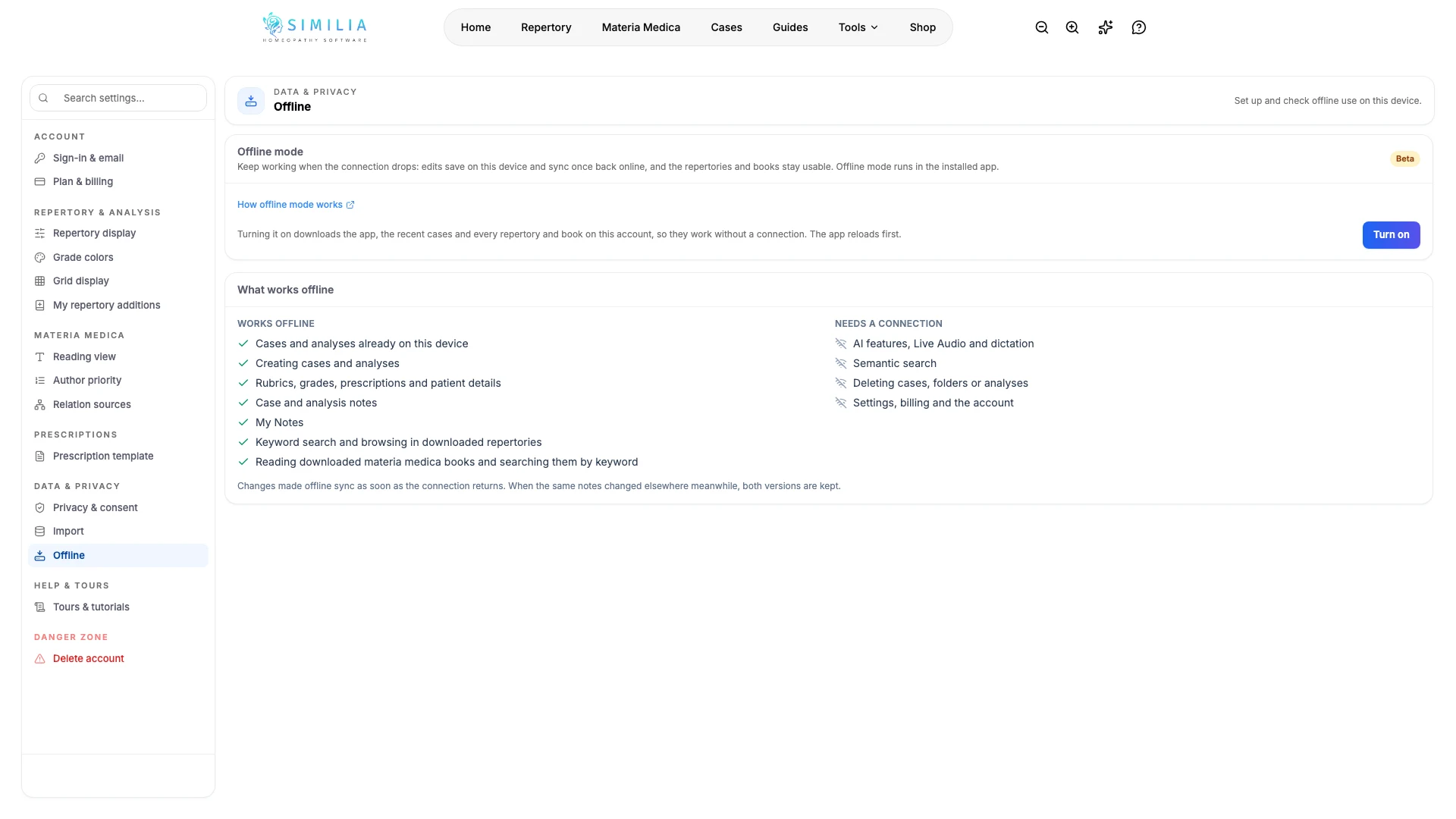
What works offline
Offline mode covers the everyday work of a consultation. Anything that runs on a server waits for the connection.
Works offline
- Cases and analyses already on the device
- Creating cases and analyses
- Rubrics, grades, prescriptions and patient details
- Case and analysis notes
- My Notes
- Keyword search and browsing in downloaded repertories
- Reading downloaded materia medica books and searching them by keyword
Needs a connection
- AI features, Live Audio and dictation
- Semantic search
- Search filters and search operators
- Adding images or audio to case notes
- Deleting cases, folders or analyses
- Settings, billing and the account
Who can use it
A Pro subscription
Offline mode is part of a Pro subscription. It starts once the subscription is active: it is not part of the free trial.
The installed app
Offline mode runs only in Similia installed from the browser. In a browser tab, Similia keeps working online as usual.
A connection every 30 days
The app confirms the subscription whenever it is online. After 30 days without a connection, it asks to reconnect before opening offline again. Nothing on the device is removed.
Premium content on up to 3 devices
Premium repertories and books work offline on up to 3 devices used in the last 30 days, and Settings › Offline can release the others. The classical repertories and books have no device limit.
Devices and browsers
Install Similia from one of these browsers. Settings › Offline shows the exact steps for the browser in use.
iPhone and iPad
Safari, Chrome, Edge or Firefox
Android
Chrome, Samsung Internet, Edge or Firefox
Mac
Safari on macOS Sonoma or later, Chrome or Edge
Windows, Linux and ChromeOS
Chrome or Edge
Offline mode doesn't work with Firefox or Opera on a computer: use Chrome, Edge or, on a Mac, Safari.
The installed app may ask to sign in once more after installing, especially on iPhone, iPad and Mac.
Changes made offline
Saved on the device
Each change is saved on the device straight away. An icon in the app's top bar shows when the connection is gone or changes are waiting.
Synced when the connection returns
Waiting changes sync by themselves as soon as the device is back online, while the app is open.
Both versions kept
If the same notes changed on another device in the meantime, both versions are kept, so nothing is overwritten unseen. For other fields, the most recent change applies.
Patient data on the device
Offline mode keeps a copy of clinical work on the device, so the device's own protection matters.
- Cases and notes are kept in the app's own storage on the device. Protect the device with a screen lock and its built-in encryption.
- Downloaded repertories and books are encrypted and tied to the account and the device.
- Signing out removes the cases and notes kept offline. If some changes have not synced yet, Similia asks first.
- Turning offline mode off syncs waiting changes first, then removes the offline copy and the downloads from the device.
- Use offline mode only on a device you control. On a shared computer, use Similia in the browser.
Still in beta
Offline mode is new and still being refined, which is why it carries a Beta label. If something doesn't work as expected, tell us through the chat in the app.
Frequently asked questions
Keep the practice going without Wi-Fi
Offline mode is part of a Pro subscription. Install the app, turn it on once, and a dropped connection no longer stops a consultation.