
Use Similia Offline
Install the app, turn on offline mode and keep working on cases, notes, repertories and books without a connection.
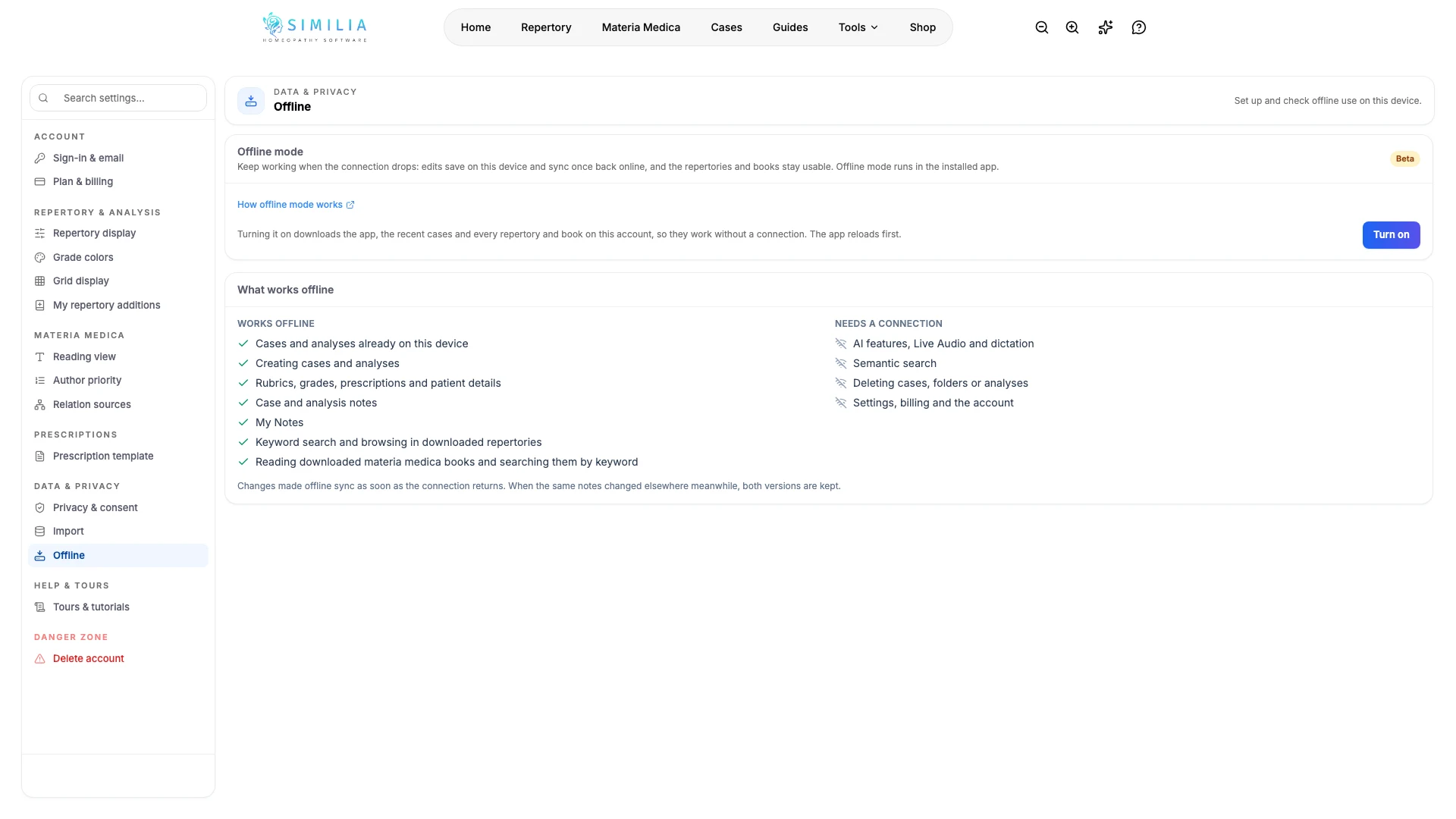
Offline mode keeps Similia working when the connection drops. The installed app keeps recent cases, notes, repertories and materia medica books on the device, saves changes there and syncs them when the connection returns. The offline mode page explains how it works and answers common questions.
Before you start
Offline mode is part of a Pro subscription and starts once the subscription is active; it is not part of the free trial. It runs only in the Similia app installed from the browser, never in a browser tab.
Install from a supported browser: Safari, Chrome, Edge or Firefox on iPhone and iPad; Chrome, Samsung Internet, Edge or Firefox on Android; Safari on macOS Sonoma or later, Chrome or Edge on a Mac; Chrome or Edge on Windows, Linux and ChromeOS. Use a device you control, and connect to Wi-Fi for the first download.
Turn on offline mode
- Open Similia in a supported browser, sign in and go to Settings › Offline.
- Follow the install steps shown there for the browser in use, such as Add to Home Screen on iPhone or Install in Chrome.
- Open Similia from the new icon on the home screen, the Dock or the desktop, and sign in if the app asks.
- In the installed app, go to Settings › Offline and select Turn on. The app reloads and starts setting up the device.
- Keep the app open and connected until the card shows Ready to work offline. The first download can take a few minutes.
- Check What works offline on the same page before relying on the device without a connection.
What you should see
The Offline mode card shows Ready to work offline, with the number of repertories and books on the device, the space they use and when the device last checked for updates. Repertories and books added to the account later download by themselves.
When the connection drops, an icon appears in the top bar. Cases, analyses and notes keep opening from the device, and keyword search keeps working in the downloaded repertories and books. Changes are saved on the device and sync by themselves when the connection returns, while the app is open. AI features, semantic search and deleting cases, folders or analyses wait for the connection.
If something looks wrong
- If Turn on cannot be selected in a browser tab, open the installed app: offline mode works only there. During the free trial, it becomes available once the subscription is active.
- If the card shows Not everything is on this device yet, keep the app open and connected. Downloads retry by themselves, or select Try again.
- If My Notes are missing without a connection, open the My Notes list once while connected so the notes are copied to the device.
- If the app shows Reconnect to continue, connect to the internet so it can confirm the subscription or the signed-in account. Nothing on the device is removed.
- If a premium repertory or book says offline access expired, connect to renew it. Premium content works offline on up to 3 devices at a time; Release other devices in Settings › Offline frees a place for this one.
- If Turn off reports that some edits have not synced yet, stay connected until they sync, then select Turn off again.