
Repertorization & AnalysisAvailabilityVaries
Read and Refine Analysis Results
Understand the remedy result view, try available sorts and filters, and trace a result back to its rubrics.
The result view summarizes how remedies occur across your selected rubrics. It supports review; it does not choose a prescription for you.
Before you start
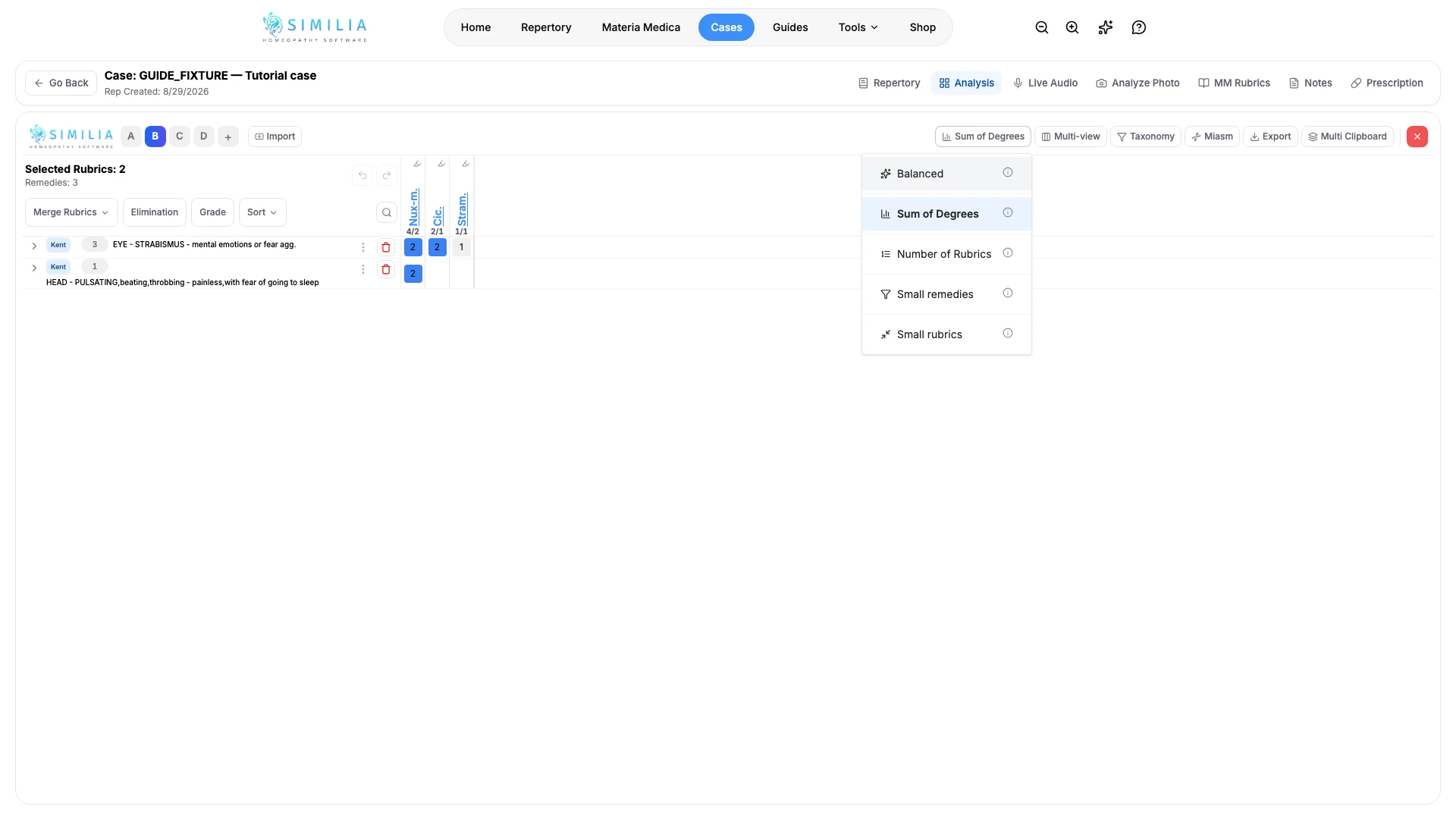
Add at least one rubric that contains remedies. Free includes two basic result sorts; Pro adds advanced sorts, views, and filters.
Review the result
- Open the remedy results in the active analysis.
- Read down a remedy column to see which rubric rows contribute.
- Select a cell or remedy detail when you need to trace its source.
- Apply one available sort.
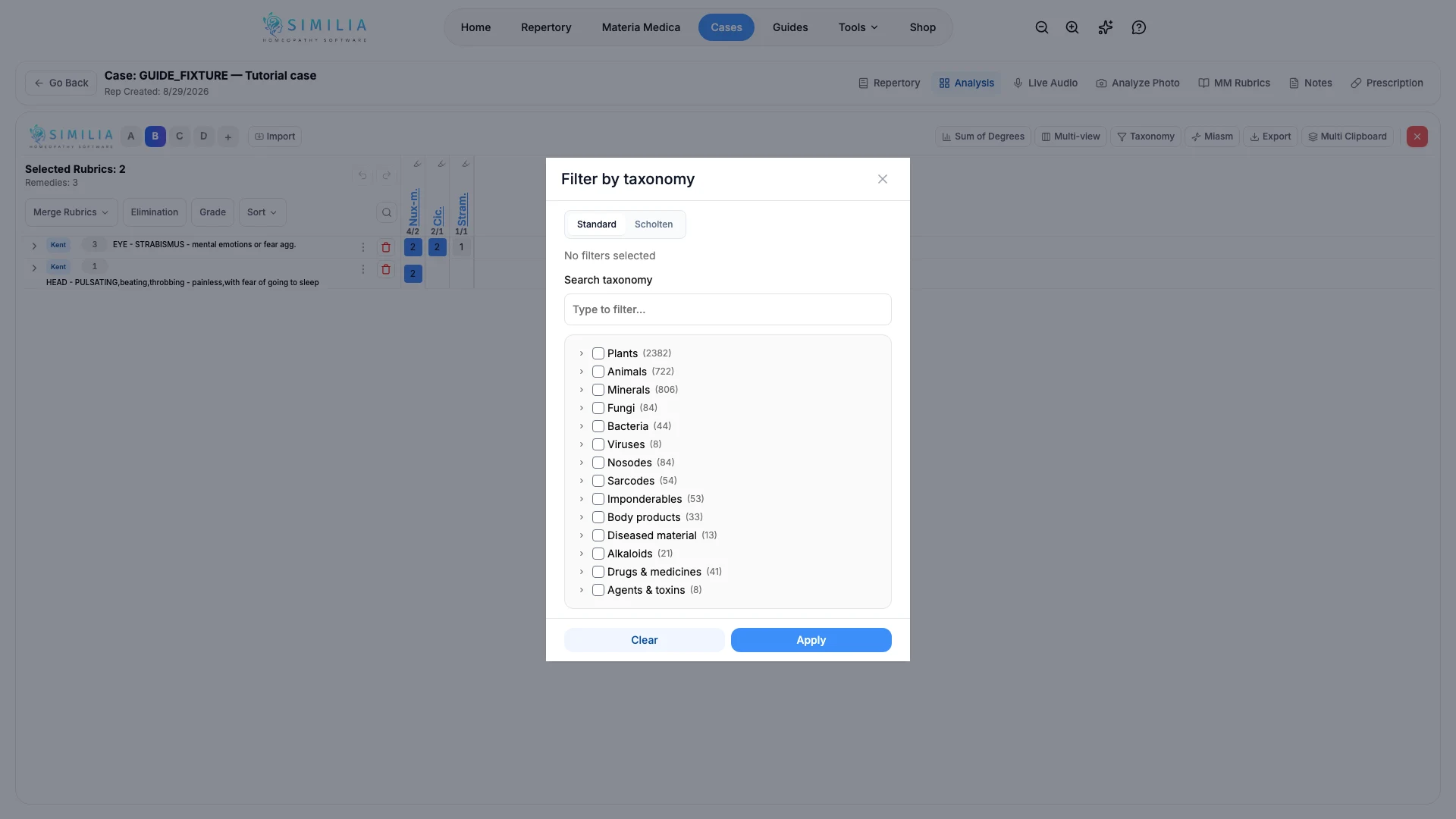
- Apply a filter only when you can explain what it removes.
- Change a questionable rubric or weight.
- Compare the updated result with the previous result.
- Clear temporary filters before making your final review.
What you should see
Scores and ordering recalculate from the active clipboard. The underlying rubric list remains visible so you can explain every change.
If something looks wrong
- If the result area is empty, check that the active clipboard has valid rubrics.
- If a remedy disappeared, clear filters and recheck the selected sort.
- If an advanced view opens an upgrade message, return to one of the two Free sorts or review Pro access.