
Use Live Audio During a Consultation
Start a consented live transcription, monitor what is captured, and review symptoms before adding rubrics.
Live Audio transcribes a consultation and helps extract possible symptoms while the conversation continues.
Before you start
Live Audio requires Pro, AI consent, available credits, microphone permission, and the explicit permission of every person being recorded or transcribed.
Start a live session
- Go to Live Audio in the correct case analysis.
- Obtain explicit permission from everyone being recorded.
- Review the AI consent and credit information.
- Open Settings and choose a session mode: Transcribe only (live transcript plus a summary at the end, no analysis calls during the session) or Transcribe + AI analysis (symptom detection, automatic rubrics, materia medica findings and case analysis while it records). The mode is locked while a recording runs.
- Allow microphone access for Similia in the browser.
- Start the session with the intended microphone selected and watch the transcript for major errors.
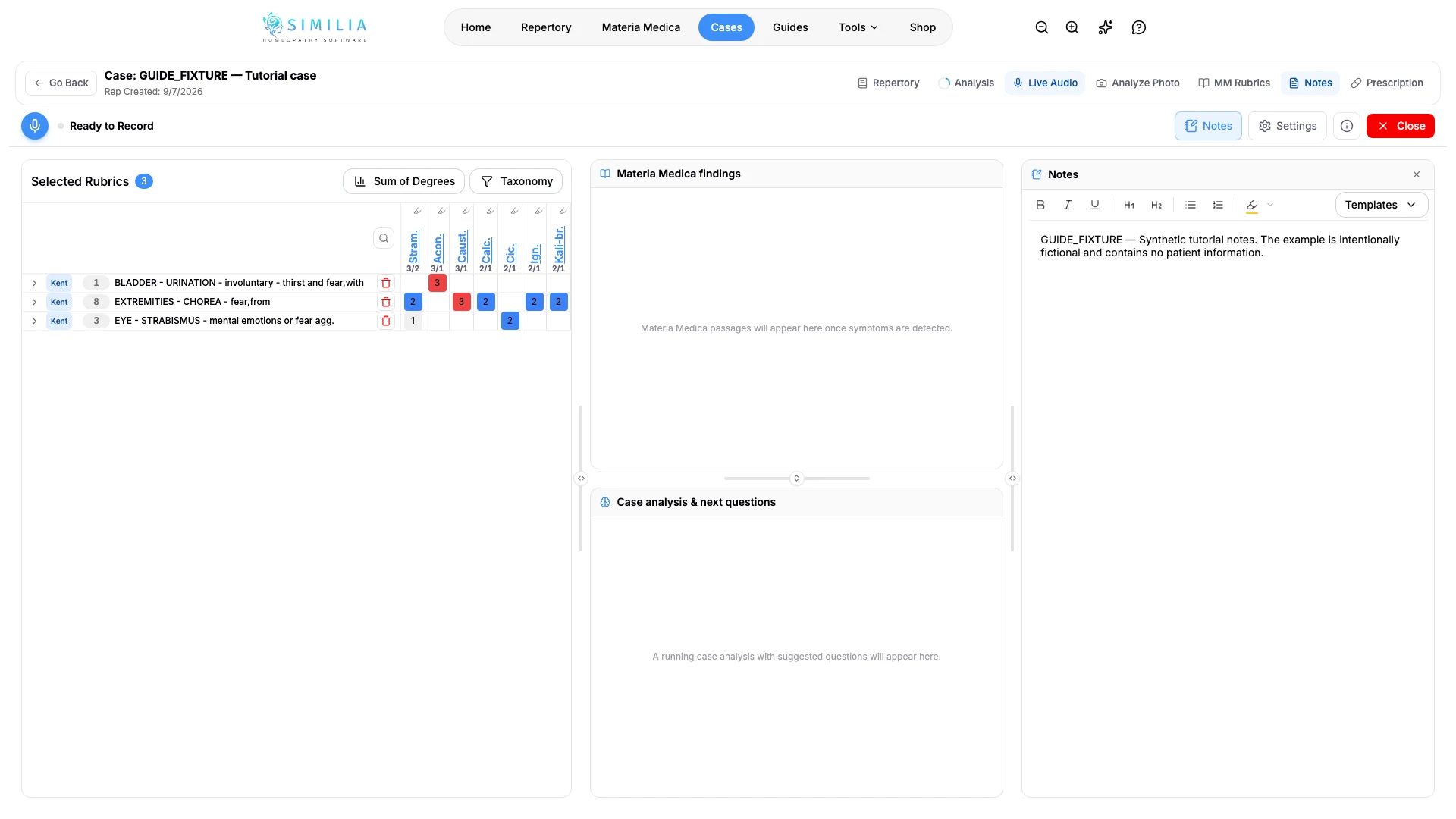
- Open Transcript from the session header to read the full live transcript, grouped by speaker, as it arrives, and Notes (or the toolbar's Notes button) to write observations while the session records; notes save to the analysis as you type.
- Stop the recording when the consultation portion ends and review the processed output before accepting any rubric. Turning AI processing off in Settings → Privacy & consent, including from another tab or device, stops the recording when the change reaches the session and skips the final AI summary and analysis. The captured transcript remains available for review.
Online consultations in a browser tab or a desktop app
When you start a session you are asked whether the consultation is in person or online. Online mode records the microphone and the call audio together, so the transcript has both speakers. The guide then asks where the call is running, and a screen-sharing dialog opens after it.
The call runs in a browser tab (Google Meet, Zoom web, Teams web):
- In the sharing dialog select the browser tab where the call is running.
- Turn on "Share with tab audio" (older Chrome shows a checkbox called "Share tab audio").
- Click Share and keep the call tab unmuted.
The call runs in a desktop app (Zoom, Microsoft Teams, Skype, FaceTime):
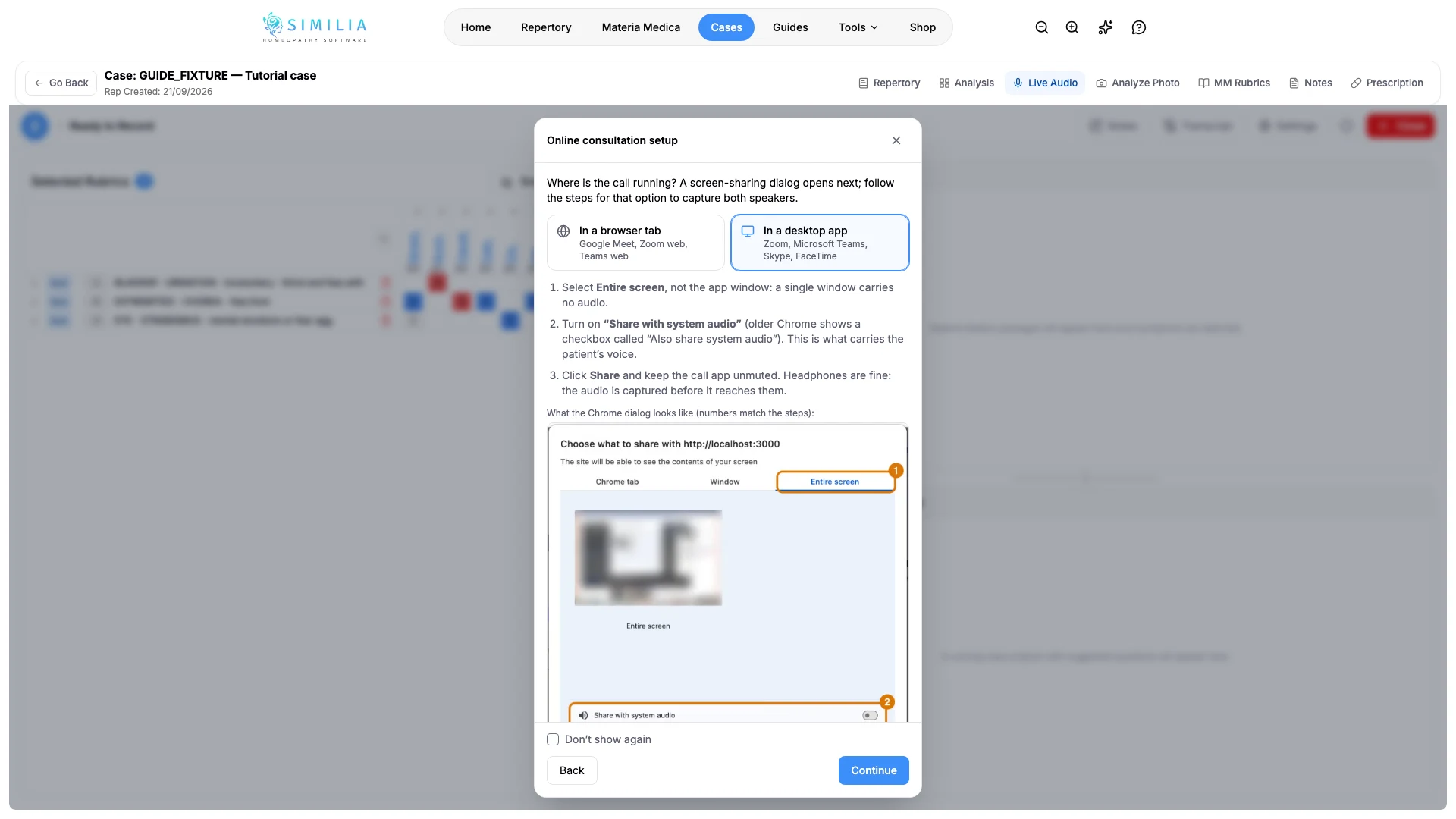
- In the sharing dialog select Entire screen, not the app window. A single window carries no audio.
- Turn on "Share with system audio" (older Chrome shows a checkbox called "Also share system audio"). This is what carries the patient's voice.
- Click Share and keep the call app unmuted. Headphones are fine: the audio is captured before it reaches them.
The setup guide in the app shows a picture of the Chrome dialog for each option, numbered to match these steps. Similia records audio only. The shared screen image is never stored or sent. If the share comes back without audio, a warning names what was missed and the session continues with the microphone only; stop it and start again to share correctly.
What you should see
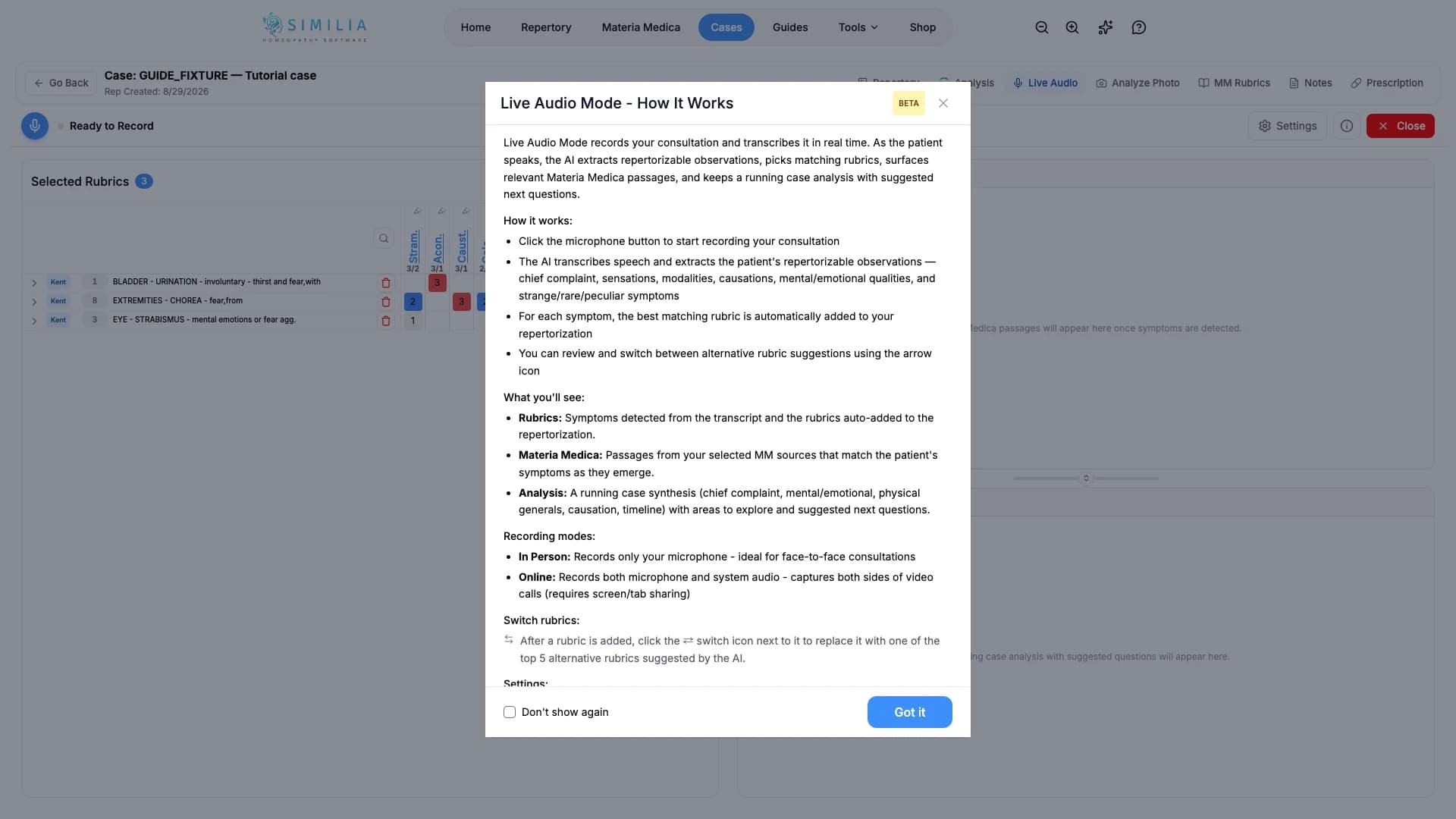
The live status is unmistakable, transcript text arrives during speech, and review controls appear after stopping. With Transcript or Notes open, a resizable column sits beside the rubrics, materia medica findings and case analysis; on a phone each is a tab. In Transcribe only mode the rubrics, materia medica and analysis panes are hidden and the layout is the transcript beside the notes. Each column stays open or closed the way it was left, and the credit counter in the header follows the rate the session is billed at.
If something looks wrong
- If there is no sound, check the selected microphone and browser permission.
- If live transcription is temporarily unavailable, wait before starting again. During a session, Similia retries brief interruptions automatically. If the service needs a longer wait, recording stops and the captured transcript is saved; review it before starting another session.
- If the transcript is poor, keep writing in the Notes pane; stop and preserve what is usable if it does not recover.
- If processing is blocked, check Pro access, consent, credits, and the connection before retrying.