
Run the Setup Wizard
Set appearance, analysis grid layout, repertory display and materia medica author priority in five quick steps, on first login or any time from Settings.
The setup wizard walks through the handful of preferences that shape every screen. It opens by itself the first time an account signs in, and it can be run again whenever those preferences need a fresh look.
Before you start
The wizard is available on Free and Pro. Every step applies its choice immediately, so there is nothing to save at the end, and a step can be left as it is by pressing Next.
Run the wizard
- Open Settings, then Tours & tutorials in the Help & tours group.
- Select Run setup wizard. On a first login the wizard opens on its own, right after the privacy notice.
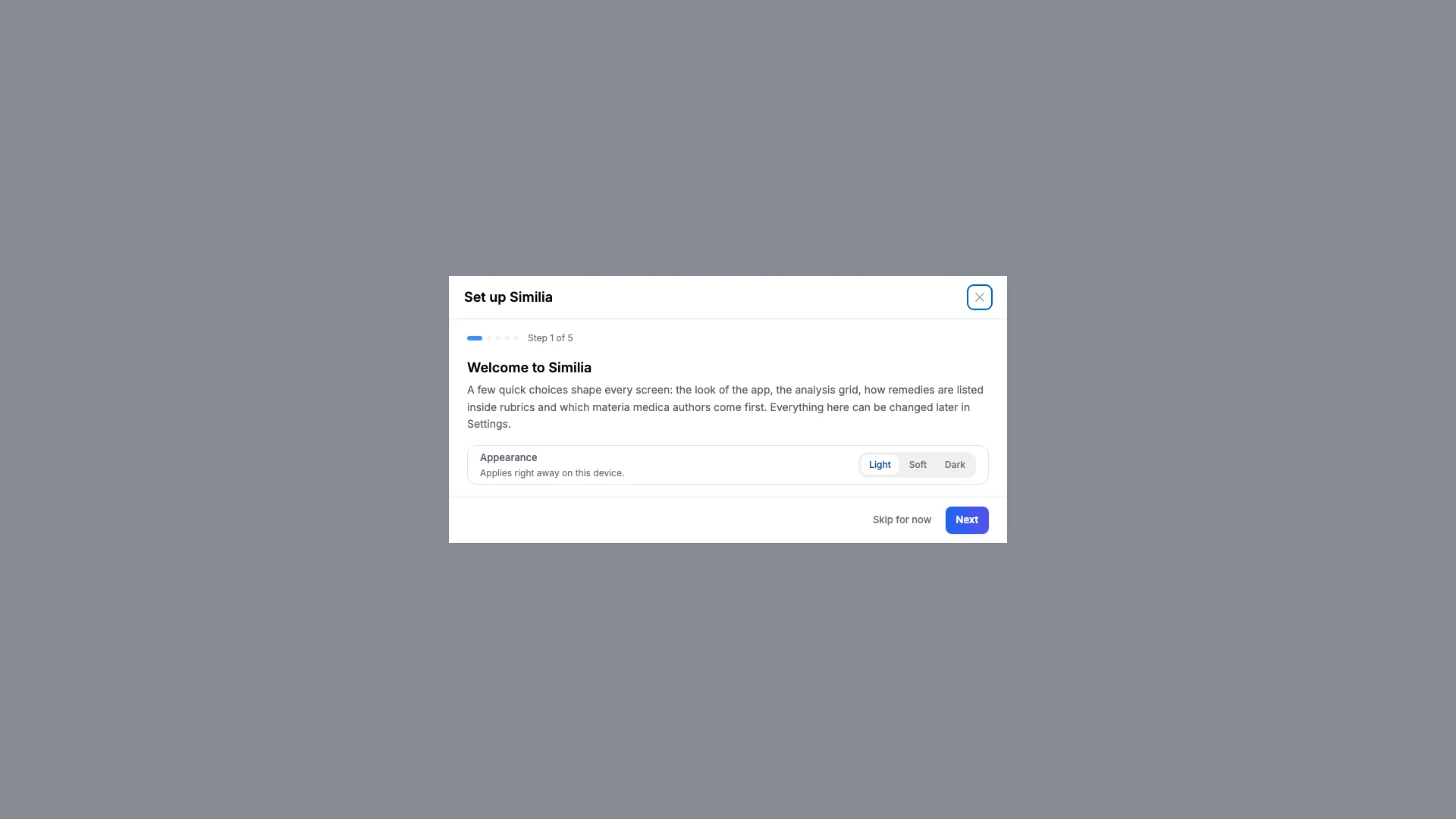
- Choose Light, Soft or Dark for the appearance, then press Next.
- Pick Standard or Compact for the analysis grid. Both cards show a live preview.
- Choose the remedy order inside rubrics and where the author tag sits, then press Next.
- Tap up to five materia medica authors in order of preference. They move to the top of the source list; the others keep their place.
- Press Finish, or Take the home tour from the dashboard to continue with the guided tour.
What you should see
Each choice is reflected as soon as it is made: the appearance switches on the spot, the preview cards follow the selected grid preset, and the "Top of the list" strip shows the new author order. After the last step the wizard closes and does not open again by itself.
If something looks wrong
- If a step reports that a choice could not be saved, check the connection and select the option again.
- If the author step shows no authors, wait a moment for the source list to load.
- If the wizard does not appear on first login, it is waiting for the privacy notice or a payment confirmation to close first.