
Repertorization & AnalysisAvailabilityVaries
Use Analysis Clipboards
Keep alternative repertorizations in separate clipboards and switch between them without mixing rubrics.
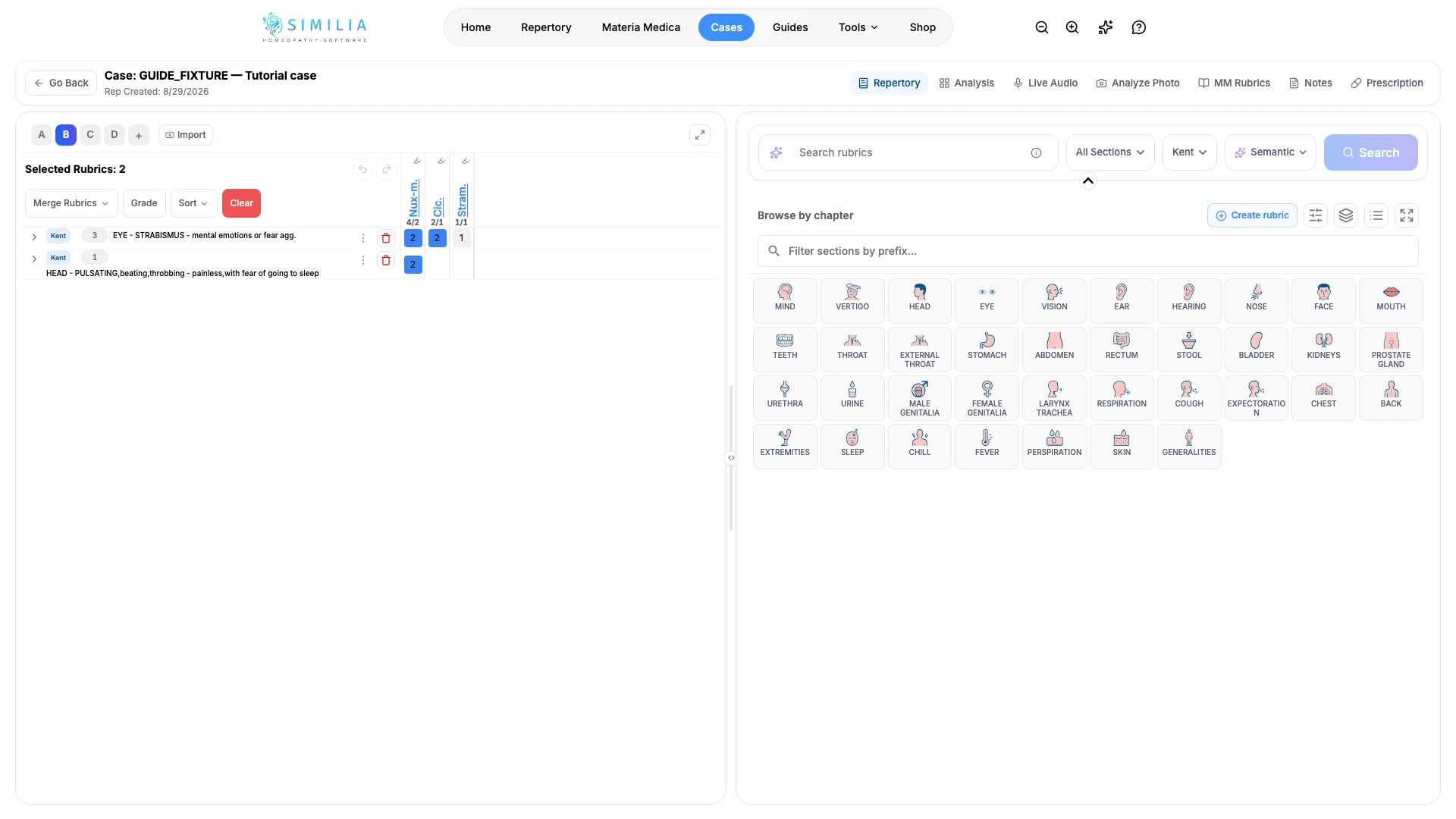
Clipboards are separate rubric sheets inside one analysis. Use them to compare approaches without deleting your original work.
Before you start
Free supports up to four analysis clipboards. Pro supports up to ten. Open the analysis that will hold your alternatives.
Work with clipboards
- Find the clipboard or sheet tabs above the rubric area.
- Select an existing tab to make it active.
- Add a new clipboard when you want an independent rubric set.
- Give it a short name that explains the approach being tested.
- Add the intended rubrics while that clipboard is active.
- Switch to another clipboard.
- Confirm that its rubric set remains unchanged.
- Reorder a clipboard with its available controls when needed.
What you should see
Only the active clipboard's rubrics and results are shown, while the other tabs remain available for comparison.
If something looks wrong
- If a new clipboard cannot be added, you may have reached the limit for your plan.
- If a rubric appears to be missing, return to the clipboard where it was added.
- If tabs are crowded on a phone, scroll the tab row instead of shrinking the page.