
Review Prescriptions and Export a Case Report
Record how the patient responded to each prescription, review every prescription in a case, and export the prescriptions or a report of the whole case.
The case page gathers what was prescribed at each consultation, so you can record the response at the next visit and keep one document of the whole case.
Before you start
These tools are available on Free and Pro. Prescriptions are written inside an analysis, as described in Create and Export a Prescription. Export Case needs at least one analysis in the case.
Record the reaction
- Open the case and, under Case Notes, select the consultation's date in the Analyses column.
- Read the prescription above the notes: each remedy with its potency, frequency, and instructions, then the Overall note.
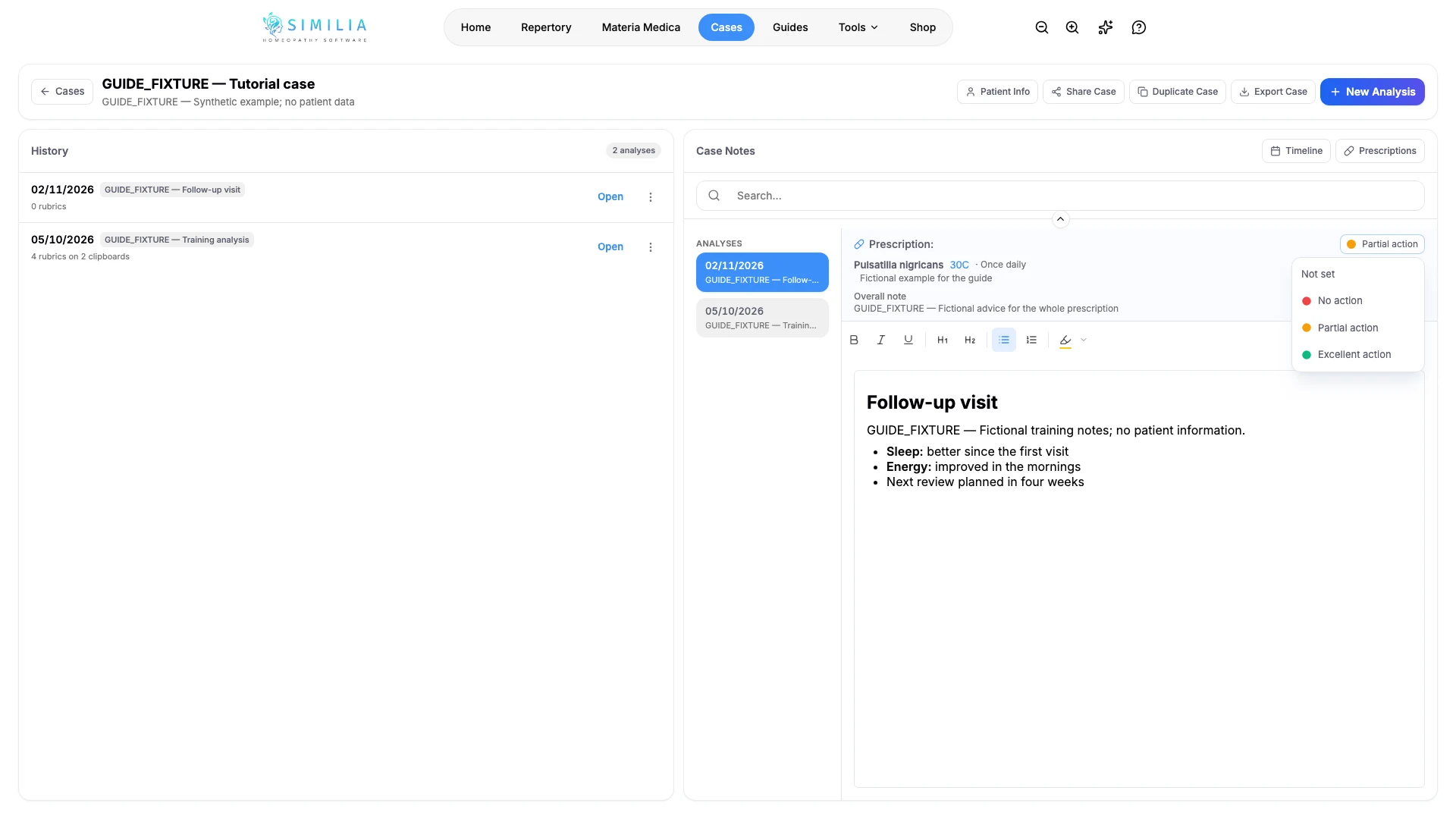
- Open Reaction beside Prescription: and choose No action, Partial action, or Excellent action. Once set, the button shows the reaction you chose, and Not set clears it.
Review and export
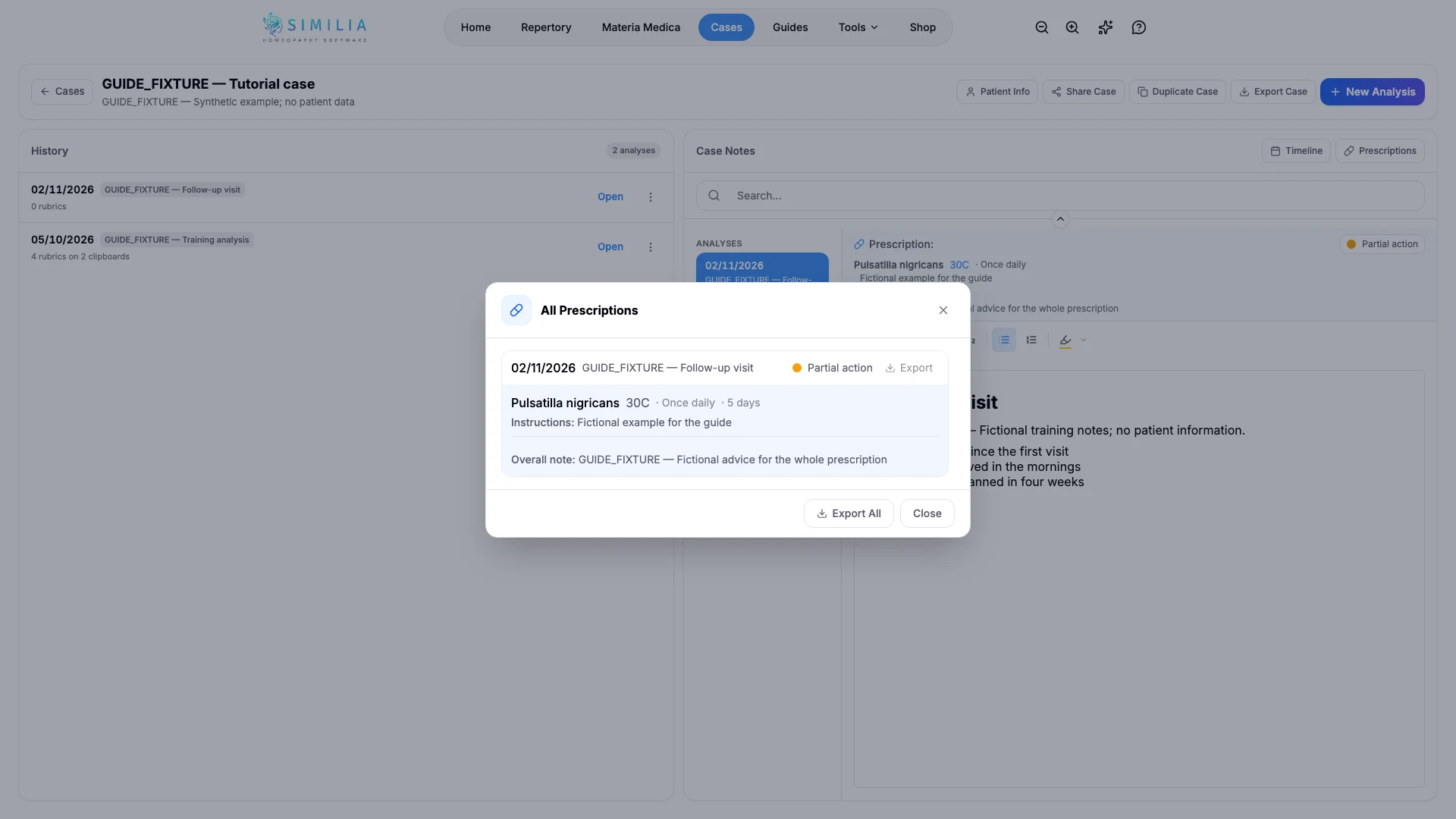
- Select Prescriptions in the Case Notes header. All Prescriptions lists every prescription in the case, newest first, with its reaction.
- Select Export beside one consultation, or Export All for the whole case. The file is a Word document or a PDF, as set under Export Format in Settings → Prescription Template.
- Select Export Case at the top of the case page to download a Word report of the whole case. On a narrow screen it is under More actions.
- Read the report before you share it.
What you should see
The reaction shows as a coloured dot beside Prescription: and in All Prescriptions. The case report starts with the case details, then lists each analysis from the oldest: its notes, a table of rubrics for each clipboard, and its prescription with the overall note.
If something looks wrong
- If there is no Reaction button above an analysis's notes, that analysis has no saved prescription yet. Prescriptions appears once any analysis in the case has one.
- If Export Case is greyed out, create the case's first analysis.
- If an export does not download, allow downloads for Similia in the browser and try again.
- If a prescription is wrong, open the analysis and edit it there, then export again.