
Find and Re-run Past Searches
Open the search history to find a search again and run it with the repertories and search type it used.
A carefully worded semantic sentence or a keyword search with + and - terms is worth keeping. Search history keeps each search you run, semantic or keyword, so you can find it again and repeat it later, on any device signed in to your account.
Before you start
Search history keeps repertory searches on Free and Pro, and materia medica searches where that search is part of your plan. Only searches you run yourself are kept, never the searches Live mode or Live Audio make for you, and not the ones you run while the installed app is offline. The 200 most recent searches are kept; the results themselves are not saved, so a re-run always searches the current repertories.
Find and run a past search
- Click in the search box in Repertory.
- Press the down arrow key, or select the clock button at the end of the search box, to open your recent searches.
- Type a few words to narrow the list.
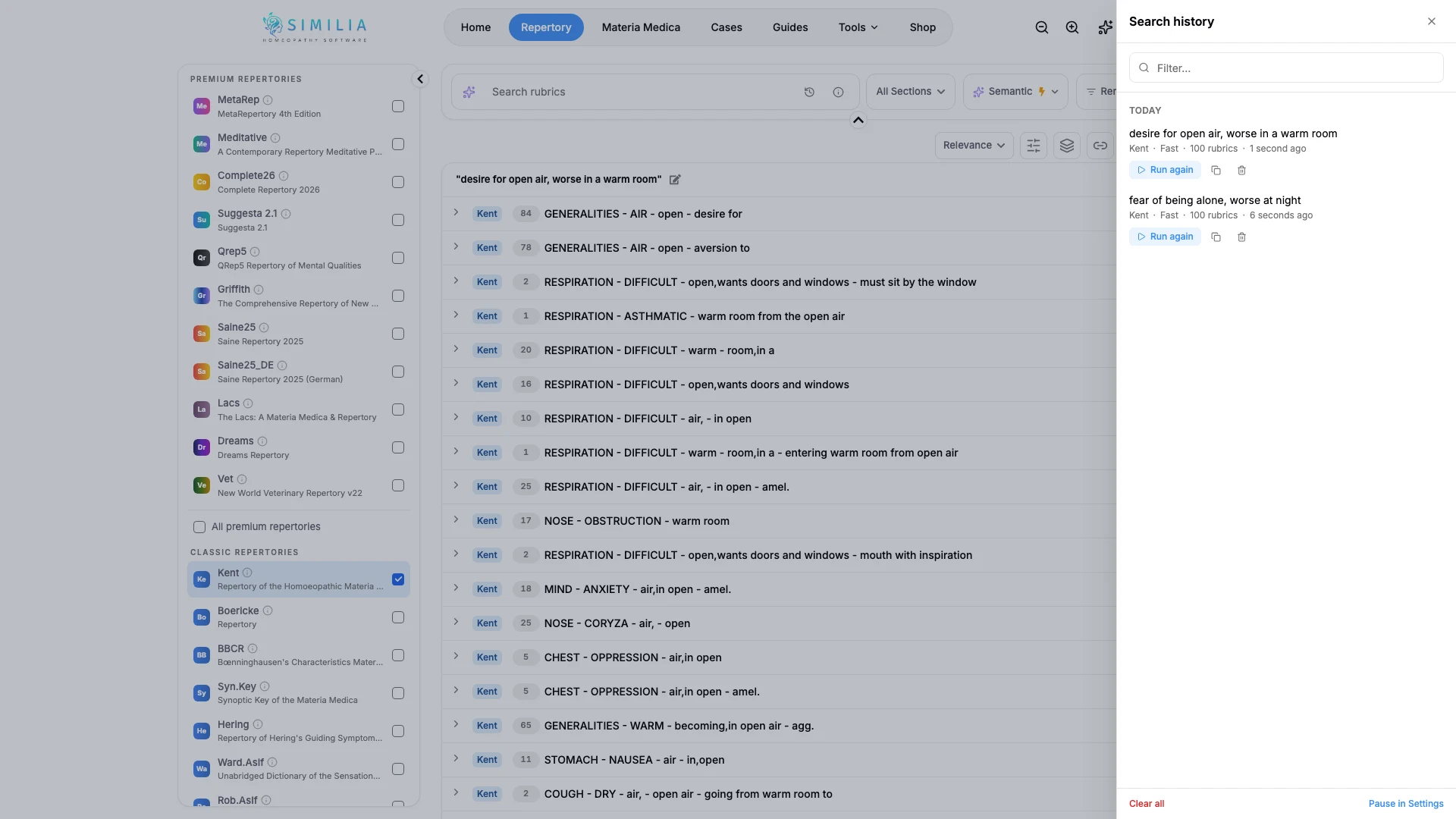
- Select a search to run it again with the repertories and search type it used: Fast or Quality for a semantic search, or Keyword.
- Select See all history to browse every saved search by day.
- Use Run again, Copy text or Delete on any search in the history.
What you should see
The search runs again on the repertories it used, even if you had switched to others since, and the search box switches to the search type it used. Keyword searches are marked Keyword in the list. If one of those repertories or Quality mode is no longer part of your plan, the search runs on what is available and a short notice above the results says what changed. In Materia Medica, the same history opens from the clock button in the search box, in Semantic and Keyword mode, and restores the books a search used and, for a keyword search, its Match setting.
If something looks wrong
- If your semantic searches are missing from the list, Manual may be chosen in Settings under Work mode: it lists keyword searches only. Choose AI-assisted to see them again.
- If new searches do not appear, search history may be paused: turn on Save search history in Settings under Search history.
- If the list does not open, check your connection: search history needs one.