
Repertory SearchAvailabilityVaries
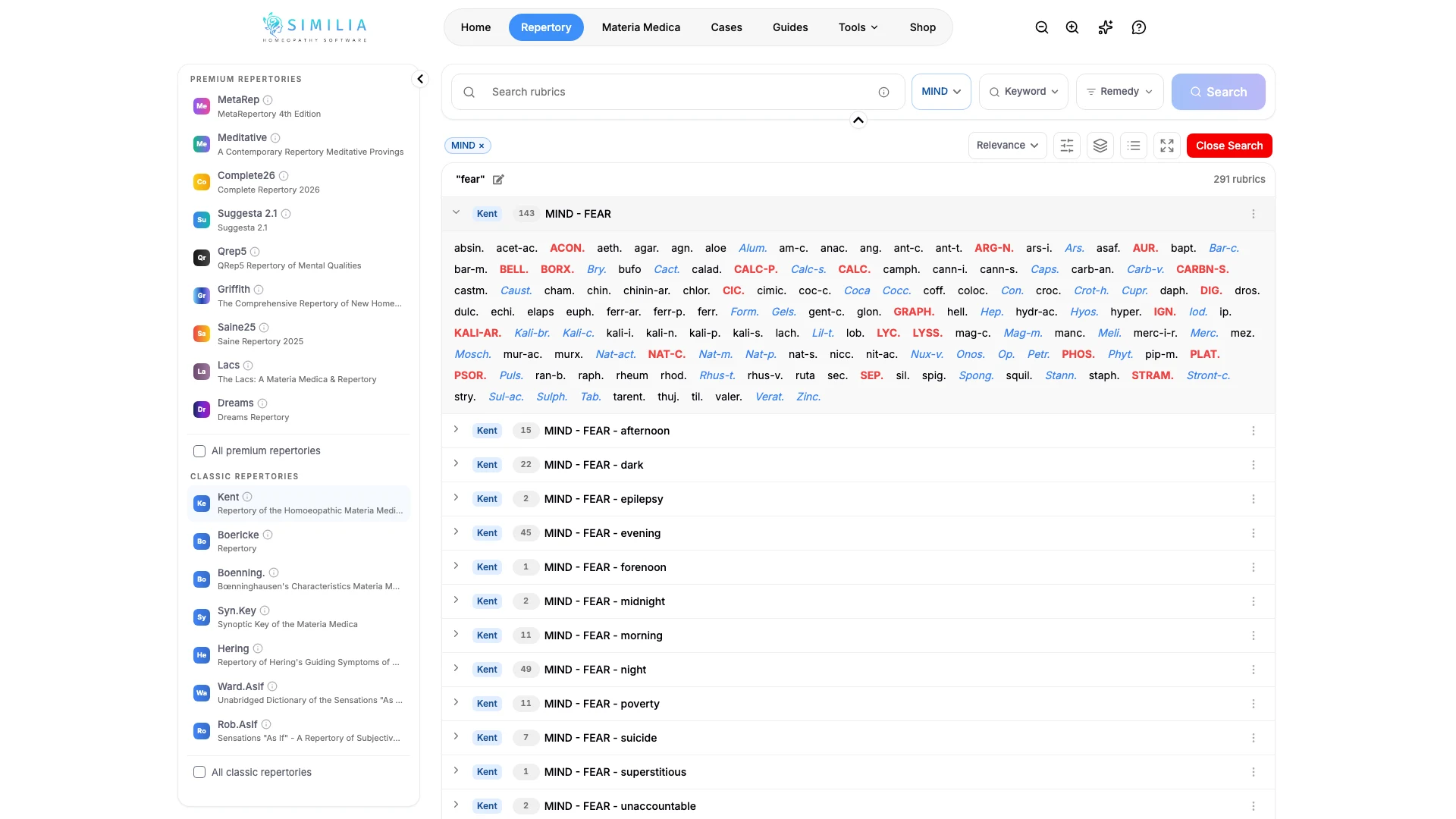
Filter and Inspect Rubrics
Narrow a repertory result list and inspect rubric remedies, sources, and context.
Filters help reduce a long result list. The details view helps you verify what a rubric contains and whether it fits the symptom you are investigating.
Before you start
Basic search and rubric inspection are available with included repertories. Some advanced filters and premium source details require Pro or the relevant repertory entitlement.
Narrow and verify results
- Run a keyword or plain-language search in Repertory, or choose a remedy in the Remedy pill and search with an empty box to list every rubric that contains it.
- Open the available filter controls.
- Apply one useful filter. With a remedy selected, each result prints that remedy after the rubric name in its grade style, and remedy-only results are ordered by grade; the sort control also offers relevance and remedy count.
- Select a result to open its details.
- Review the complete path, remedies, grades, and available source information.
- Close the details view.
- Clear the filters before starting a different search.
- Repeat the verified search inside the relevant case analysis before adding the rubric.
What you should see
The result count changes when a filter is active, a selected remedy appears after each rubric name in the grade colours from Settings, and the selected rubric's details appear without changing its wording.
If something looks wrong
- If the list becomes empty, remove the most recent filter first.
- If remedies are missing, confirm that you opened a final rubric rather than a parent branch.
- If an advanced control opens an upgrade prompt, continue with the basic controls or review Pro access.