
ToolsAvailabilityPro
Organize and Search My Notes
Use folders, remedy links, views, and full-note search to find your private reference material.
A small folder structure plus precise note titles is usually enough to keep a large personal library usable.
Before you start
My Notes requires Pro. Create at least two harmless practice notes so you can see how filters and folders behave.
Organize and find notes
- Open My Notes.
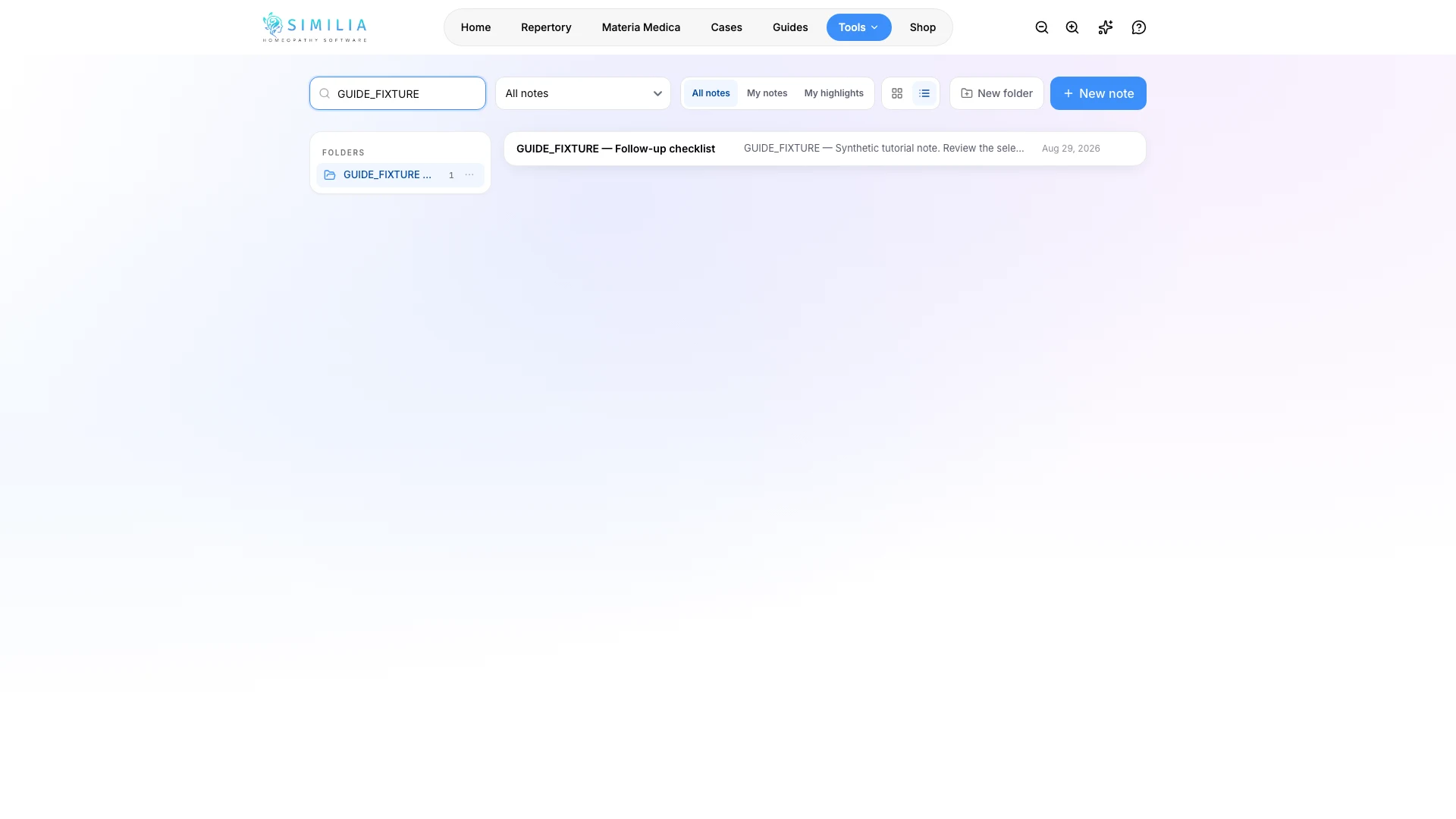
- Create a folder with a broad, durable name.
- Move a note into the folder with its folder control.
- Link remedies from the editor when remedy-based browsing will help later.
- Choose the list or card view you find clearer.
- Enter a distinctive word in search.
- Wait for the search indicator to finish.
- Clear the search to return to the complete library.
What you should see
While a search is still running, Similia shows a busy state instead of incorrectly claiming that no note matches.
If something looks wrong
- If results change after a moment, let the full-note search finish before deciding a match is absent.
- If the list is empty, clear both the search box and the selected folder.
- If changes fail to save, keep the page open, check the connection, and retry the action.