
Compare Remedies and Families
Build a comparison chart and inspect how selected remedies or families appear across repertory sections.
Remedy Comparison turns a small selection into a visual repertory-section comparison for study and review.
Before you start
Remedy Comparison requires Pro. Begin with two or three clearly identified remedies or one available family; a large selection is harder to interpret.
Build the comparison
- Go to Remedy Comparison in Tools.
- Choose the repertory or data scope when prompted.
- Search for the first remedy.
- Add the first remedy to the comparison.
- Add the other remedy or family you want to compare.
- Wait for the chart to update automatically.
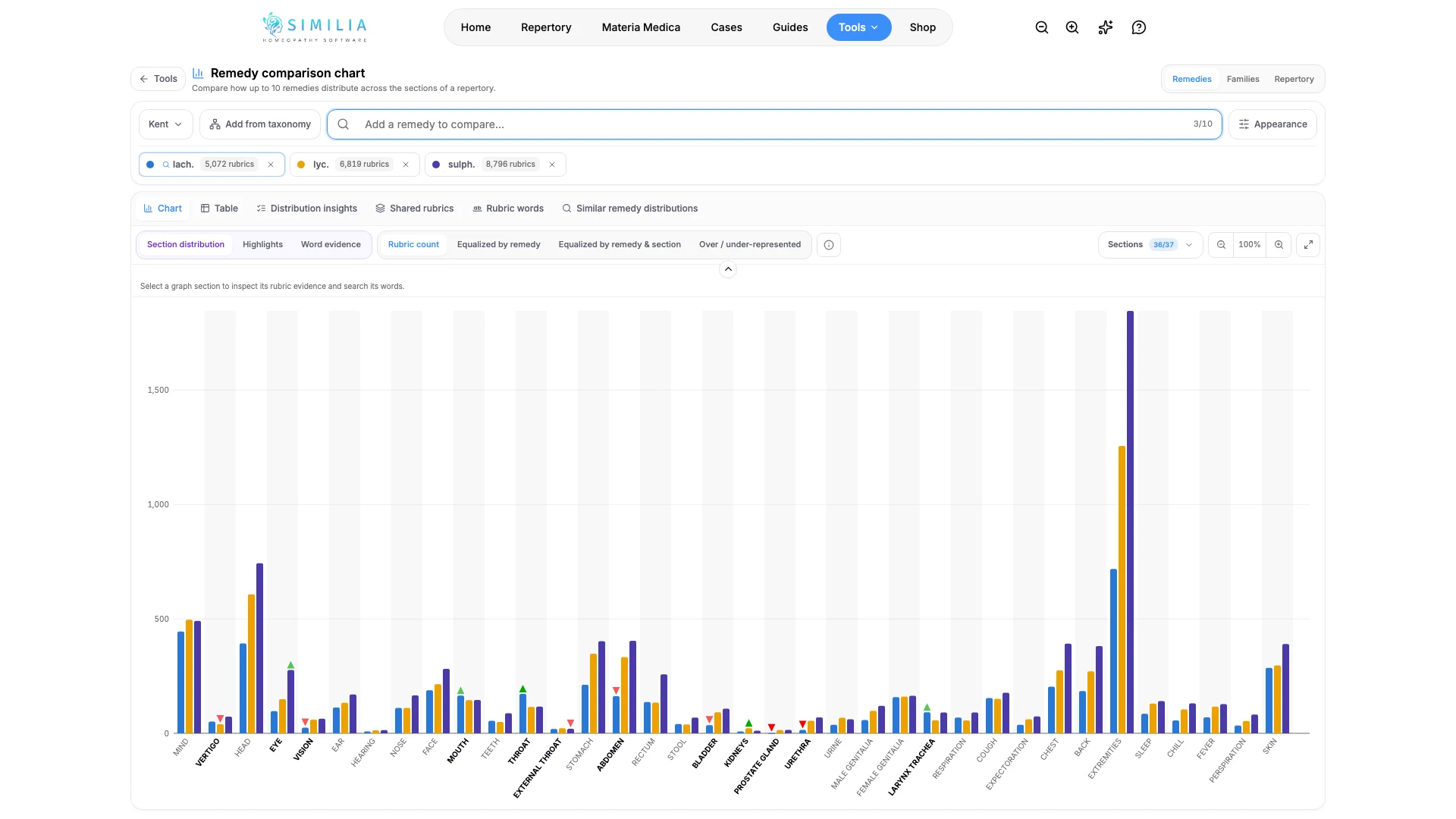
- Select a section, bar, or legend item to inspect its detail.
- Remove one selection to see how the display changes.
Compare from an analysis
A repertorization can hand its leading remedies straight to this chart. Open the case analysis, go to the repertorization grid, and use Compare in the grid toolbar.
- Compare highlighted takes the remedy columns you highlighted with the highlighter on their headers (at least two).
- Compare top 5 or Compare top 10 takes the leaders of the current sort and filters.
- The chart opens in the repertory that supplied most of the sheet's rubrics; a sheet that mixes repertories says which one was used.
- Back to analysis returns to the grid.
The chart keeps its remedies in the page address, so a reload restores them and the link can be shared with a colleague who has Pro.
What you should see
Each selected item has a consistent color or label, and the chart shows its distribution across the available sections.
If something looks wrong
- If the tool is locked, confirm Pro access.
- If a remedy is missing, try its standard abbreviation or full name.
- If the chart is crowded, reduce the selection and reset any active section filter.